
LinkyFlow permissions per connection
Why it matters
Your platform grants rights to a key or an app as a whole. A Shopify app that may manage your orders may do it everywhere it is used. With LinkyFlow permissions you decide, for each connection, what LinkyFlow may actually do with it: let your team, ChatGPT and your agents work on your catalogue and your stock while your orders stay out of reach — without changing anything at Shopify and without reconnecting.
What it does
- Each connection has its own LinkyFlow permissions, right by right: read orders, create and update orders, read products, set stock quantities, and so on.
- A right you untick is refused on every surface: the web app, Excel, ChatGPT and Claude, the API and your agents. It is refused before anything is sent to your platform, and the refused call is not counted in your usage.
- LinkyFlow can only block. It never grants what your platform refuses: a right your platform did not grant stays unavailable, whatever you tick here.
- Your other connections keep their own permissions, even another store on the same platform.
Set it up
- Open Connections and click the connection.
- Scroll to Rights. Each right shows three answers: what your platform reports, what LinkyFlow allows, and the result.
- Untick what LinkyFlow must not do — for example Read orders and Create & update orders.
- Click Save. It applies at once; no reconnection, no new key.
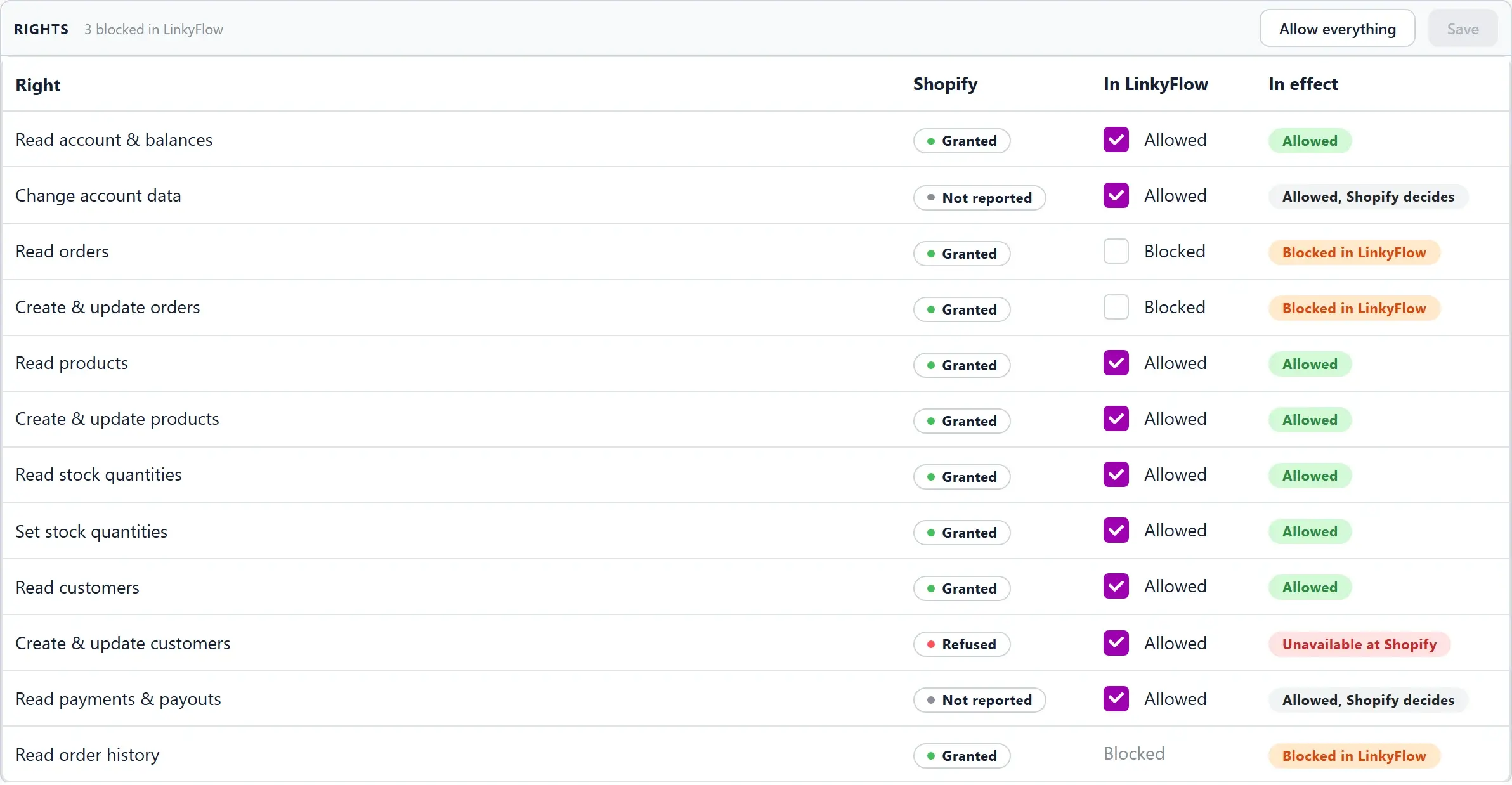
Reading the table
- Shopify (or your platform): Granted, Refused, or Not reported when the platform does not say what its key may do.
- In LinkyFlow: what you allow. Without any change, everything is allowed. A right your platform reports that no LinkyFlow operation uses on its own (Read order history) has no box: it follows the rest of its family.
- In effect: Allowed, Blocked in LinkyFlow (you can change it here), Unavailable at Shopify (only your platform can change it), or Allowed, Shopify decides when the platform reported nothing — LinkyFlow then lets the call through and your platform has the last word.
Before you save
The In effect column already shows the result of what you ticked, and Not saved yet reminds you that nothing has changed. Allow everything brings every right back in one click.
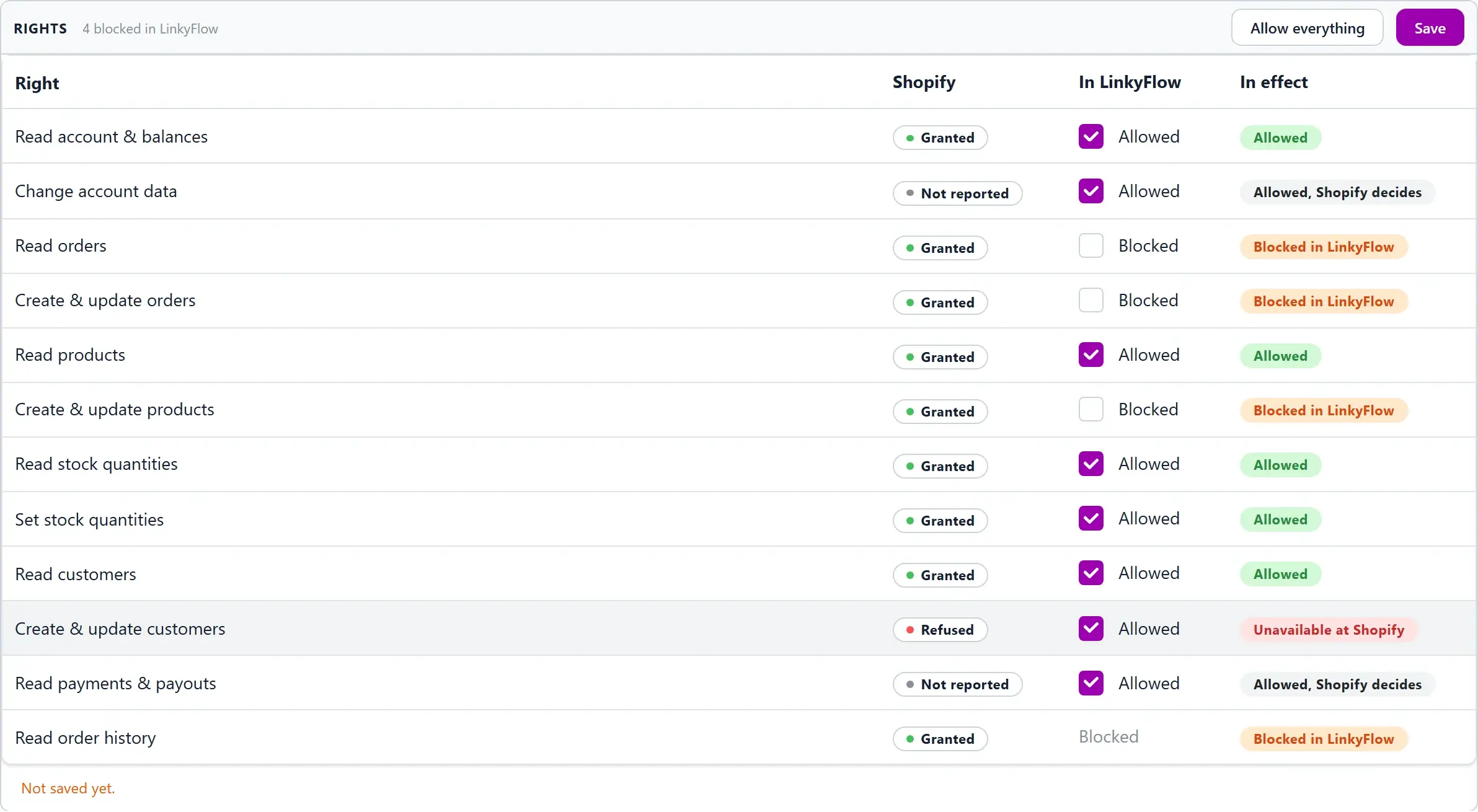
What a blocked right looks like
- Web app and Excel: the actions that need it are no longer offered in the Actions pane, and the reason says it is disabled in LinkyFlow.
- ChatGPT and Claude: the assistant is told the right is disabled in LinkyFlow, and that reconnecting changes nothing.
- Agents: an agent that needs the right stops before its first change and tells you which connection and which right to allow.
- API: the call answers
403with the codeLINKYFLOW_CONNECTION_PERMISSION_DENIED, the blocked rights and the rule to add.
Good to know
- These permissions apply to what is done through LinkyFlow. They do not revoke anything at your platform: your key or app keeps its scopes there. To withdraw a right everywhere, change it at your platform too.
- A family you leave fully allowed (all order rights, say) stays allowed when LinkyFlow adds a right to it later. Anything else stays blocked until you tick it.
- Technical housekeeping is never blocked: renewing a token, checking the connection, receiving your platform's notifications.
- If someone else changed the permissions while you were editing, saving tells you so: review them as they are, then save again.