LinkyFlow · Stripe in Excel

Stripe. In Excel.

Bring customers, invoices, subscriptions, payments, and payouts into Excel. Bulk edit rows, reconcile revenue, publish supported changes back to Stripe — without leaving the spreadsheet.

LinkyFlow Stripe dashboard in Excel

Bulk

billing & customer edits in Excel rows

All

records in one fetch with cursor pagination

17

Stripe queries available

Every Stripe object. One workbook.

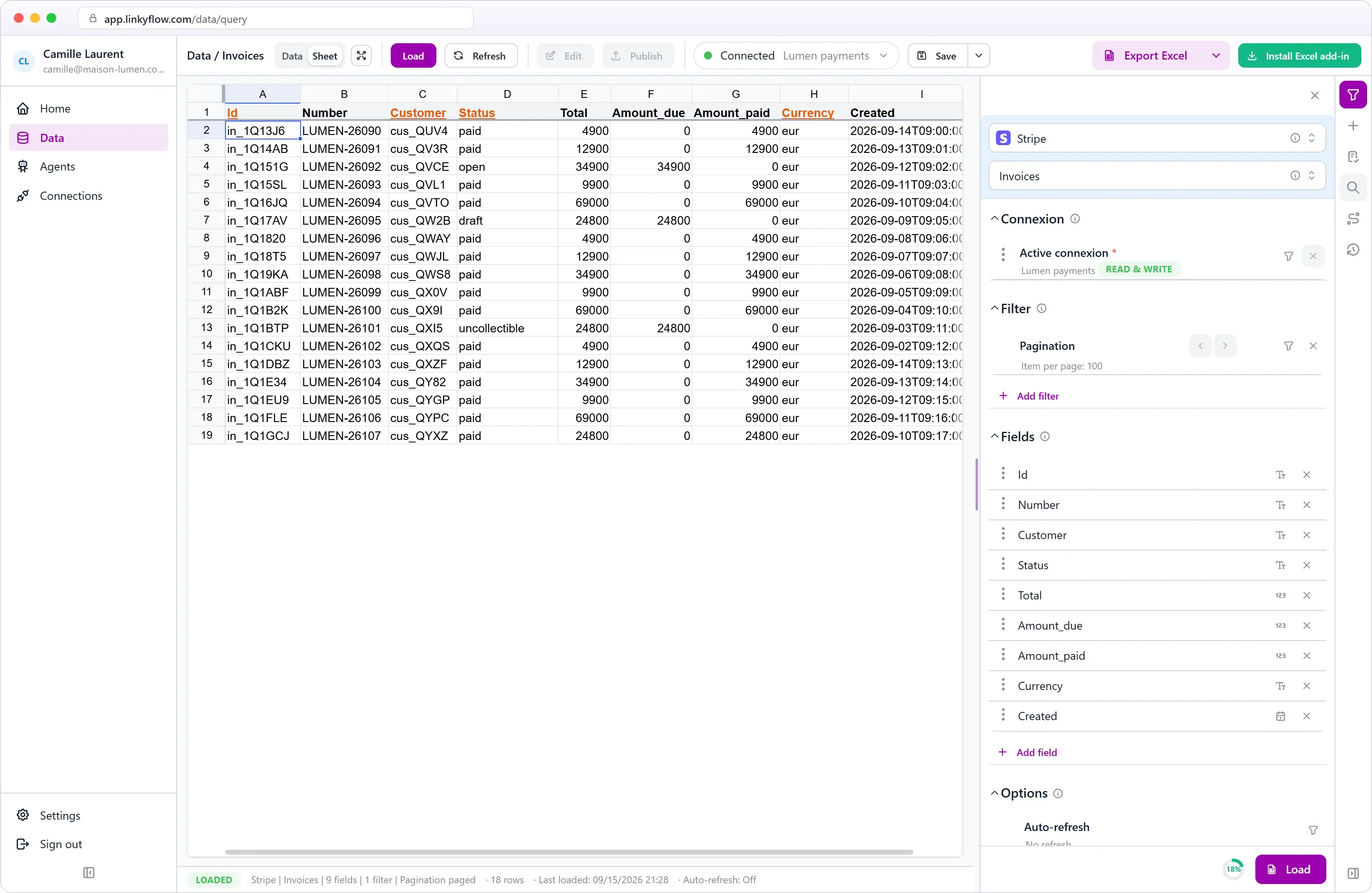
Customers, products, prices, invoices, invoice items, subscriptions, payment intents, charges, refunds, payouts, coupons, promotion codes, tax rates, disputes, and balance transactions — all available as structured Excel queries.

Customers
Products
Prices
Invoices
Invoice items
Subscriptions
Payment intents
Charges
Refunds
Payouts
Coupons
Promotion codes
Tax rates
Disputes
Balance transactions
+ more

From billing to reconciliation.

The loop of exporting CSVs from the Stripe Dashboard, editing in a spreadsheet, and re-importing disappears. LinkyFlow makes it a single connected workbook workflow over the Stripe REST API.

Create and update customers, invoices, and prices in rows

Add customers, draft invoices, and adjust prices across hundreds of rows in Excel, then publish in one batch. Amounts are entered in the smallest currency unit (cents) — exactly what Stripe expects.

Bulk update Stripe billing data with LinkyFlow
Validation feedback in LinkyFlow for Stripe

Catch wrong input before it reaches Stripe

Inline validation flags missing or invalid values in the row — so amount typos and bad statuses never reach your live Stripe account.

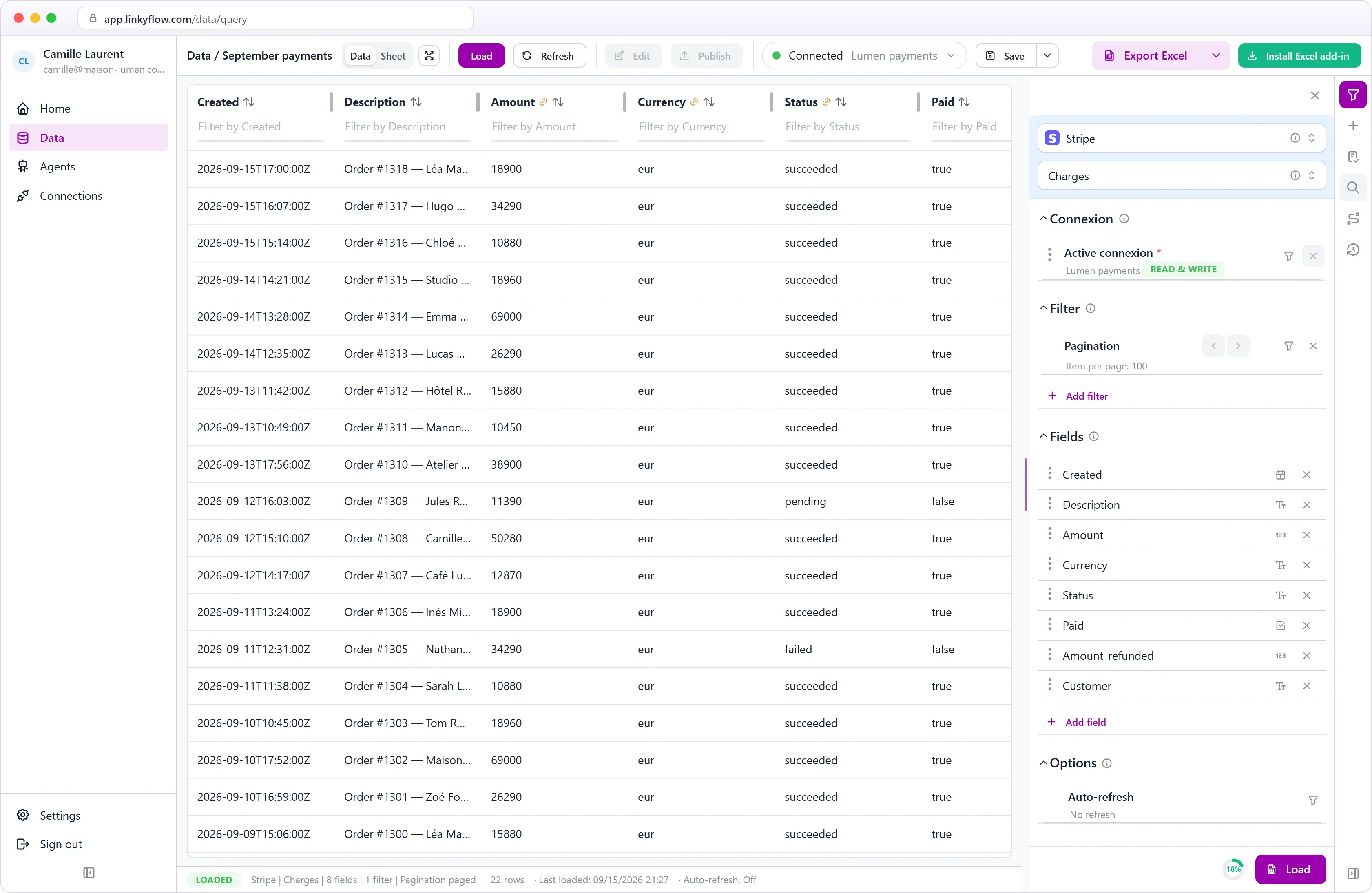
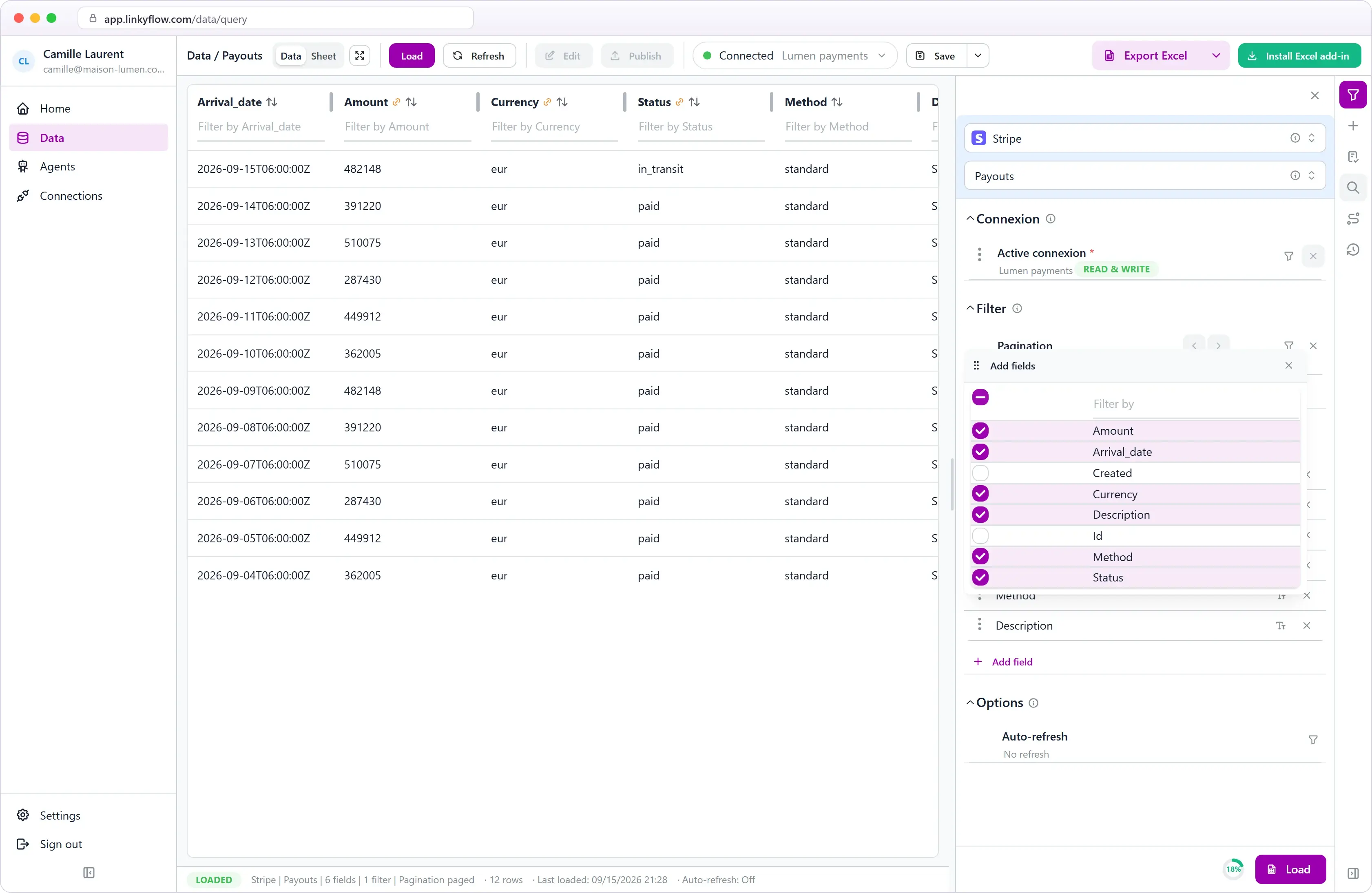
Load one page or the whole account

Page through results with the limit control and arrows, or pick "All results" to pull every customer, invoice, or charge in a single fetch — Stripe cursor pagination is handled for you.

Stripe cursor pagination and field selection in LinkyFlow
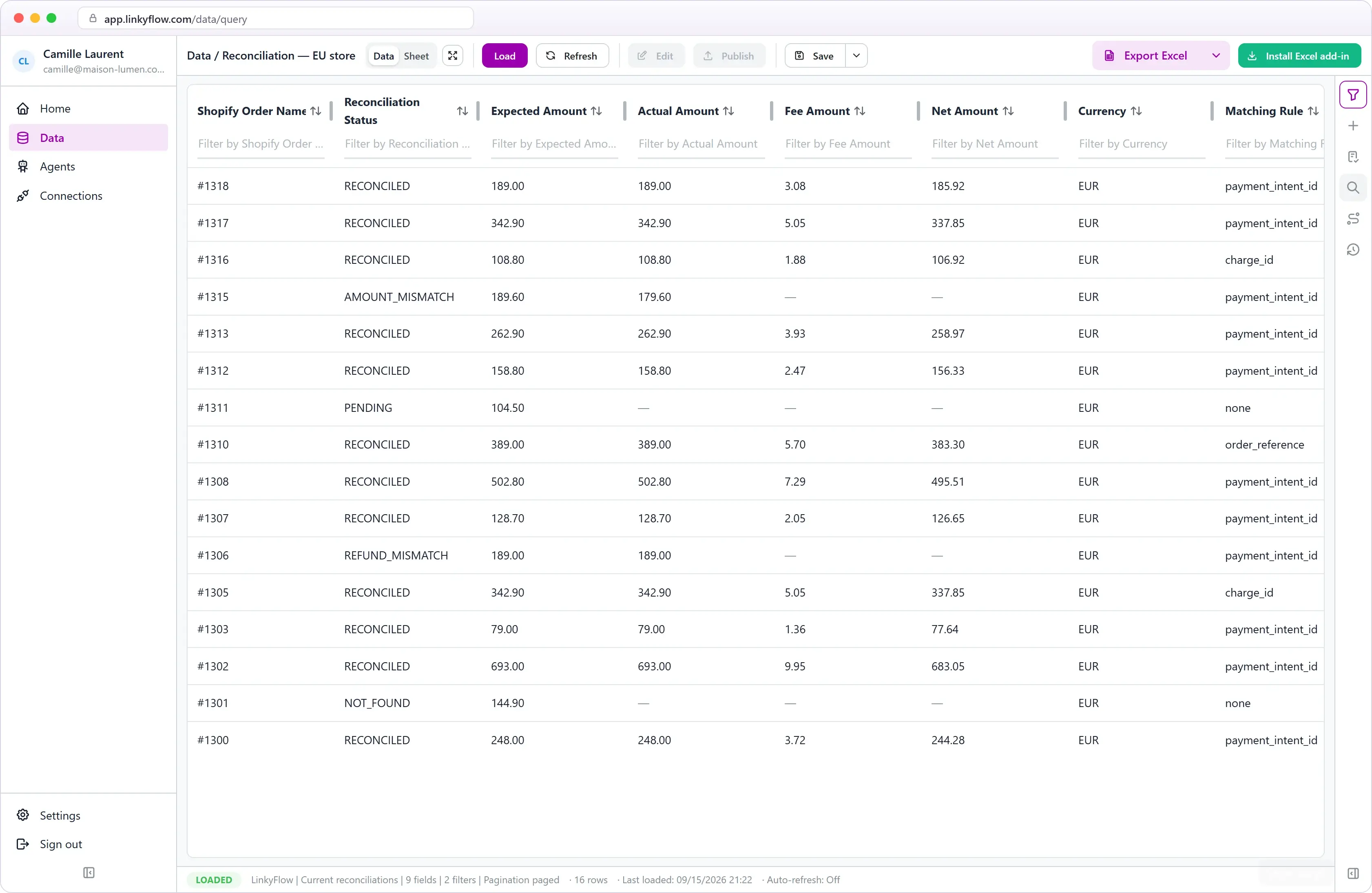
Stripe revenue and subscriptions overview

Revenue and subscription dashboards

Track gross revenue, refunds, net, and subscription health next to the formulas and checks your finance team already uses in Excel.

From install to first publish.

STEP 01

~2 min

Copy your secret key

In the Stripe Dashboard → Developers → API keys, copy your secret key (or create a restricted key with only the scopes you need).

STEP 02

~2 min

Connect in Excel

Install the LinkyFlow add-in from AppSource, add a Stripe connection and paste your secret key.

STEP 03

~30 s

Load and publish

Pick a query, load customers or invoices into Excel, edit rows, and publish supported updates back to Stripe.

Your payments. Your spreadsheet.

Install LinkyFlow free, connect your Stripe account, and manage billing where your finance team already works.

Frequently asked questions

What Stripe data can LinkyFlow access?

Customers, products, prices, invoices, invoice items, subscriptions, payment intents, charges, refunds, payouts, coupons, promotion codes, tax rates, disputes, balance transactions, and events — all as Excel queries.

Can LinkyFlow publish bulk updates to Stripe?

Yes. Prepare changes in Excel rows and publish in batches via the Stripe REST API — create, update, and delete are supported where Stripe allows them.

What do I need to connect?

A Stripe account and a secret API key (live or test). A restricted key works too — grant only the resources you want LinkyFlow to read or write.

How are amounts handled?

Stripe stores money in the smallest currency unit (cents). Enter amounts in cents — €19.99 is 1999 — and LinkyFlow sends them through exactly as Stripe expects.