
Track one symbol
The "Track one symbol" dashboard puts one trading pair on one Excel sheet: the market (order book, 24-hour ticker, a chart of the daily candles, the latest public trades) next to your account (your balances and the orders you placed on that pair), with a buy panel that prepares an order for you to check.
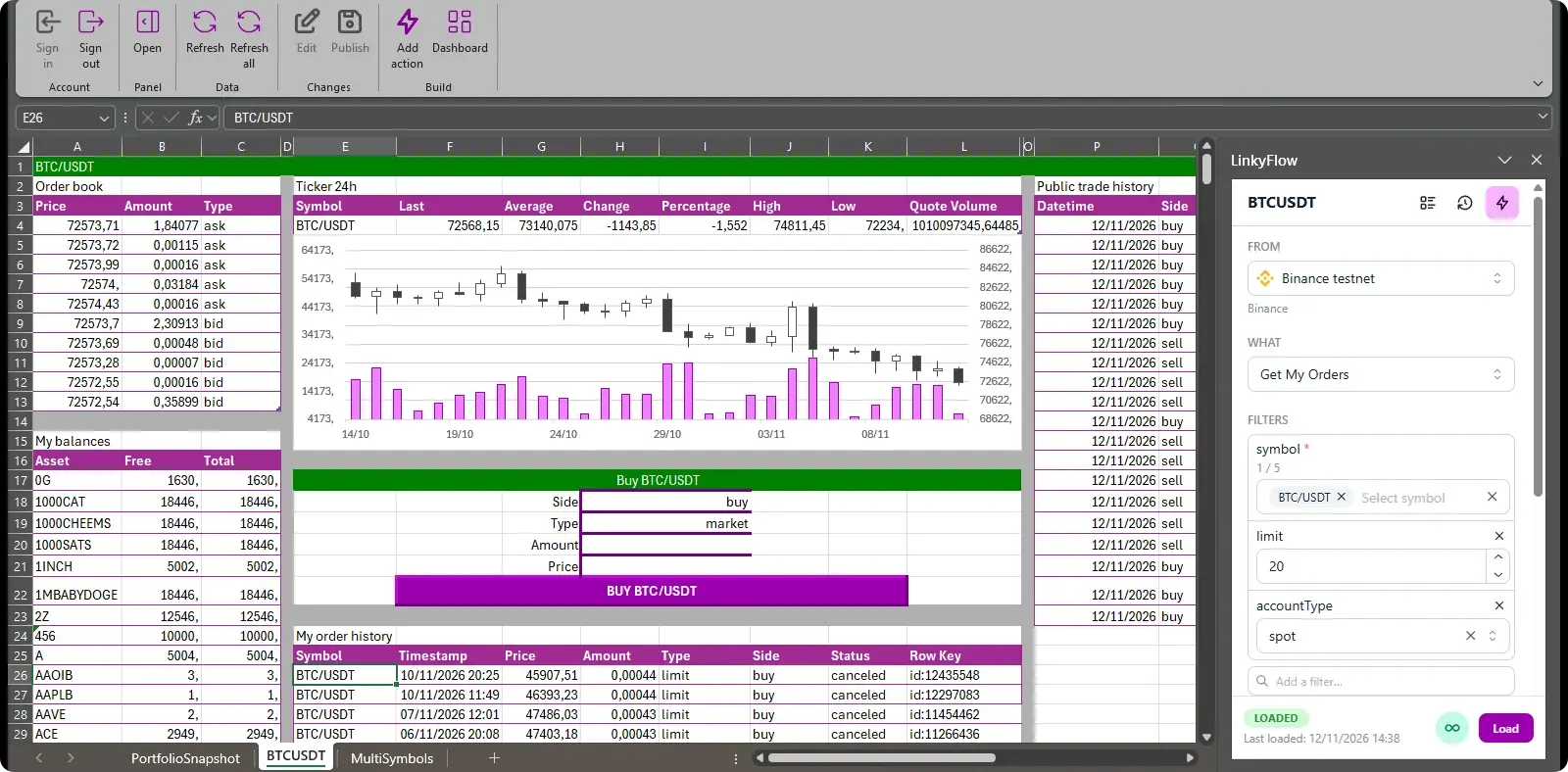
Captured on a Binance Spot testnet account: the market blocks show Binance's public prices, the account blocks the testnet's paper funds and orders.
Build it
- In Excel's ribbon, LinkyFlow tab → "Dashboard".
- In "Track one symbol", choose your exchange connection under "Link" and the symbol, for example BTC/USDT.
- Optionally choose an "Auto-refresh" interval under Options, then click "Build".
The dashboard lands on a new sheet named after the symbol (BTCUSDT). Select a cell of any of its tables and the LinkyFlow pane shows the query behind it — connection, filters, fields — to change and load again.
What the sheet holds
- Order book (Get Order Book): the five best asks and the five best bids — price, amount, side.
- Ticker 24h (Get Ticker 24h): last price, average, change, percentage, high, low and quote volume over 24 hours.
- Price chart: an Excel stock chart of the last 30 daily candles — volume, open, high, low, close — drawn from the daily candles table (Get OHLCV) further right on the sheet.
- Public trade history (Get Trades): the 20 latest trades on the market — time, side, price, amount.
- My balances (Get My Balances): every asset you hold, free and total.
- My order history (Get My Orders): your 20 latest orders on the symbol — time, price, amount, type, side, status.
- Buy panel: choose the side and the order type, type the amount (and the price of a limit order), then select the "BUY BTC/USDT" button: the order opens in the pane's Actions panel, filled in, and nothing is sent until you execute it there. Placing an order needs a key allowed to trade — see Futures & orders. A purchase played end to end, from the price to the balance it leaves: Buy bitcoin on Binance end to end.
The same order from the web app
The LinkyFlow web app places the same order without Excel. In Data, load a table on your exchange connection — Get Ticker 24h of the pair, for example —, click its row, then open Actions: Buy / Sell opens an order form on that pair. Choose the side, market or limit, the size (on a market buy, the sum to spend in USDT or the quantity of bitcoin) and the price of a limit order, then Preview: nothing reaches the book. LinkyFlow checks the order against the market's rules, has the exchange test it, and shows the answer — valid or not and why, the estimated cost, the market's minimums and steps, and whose money it is: a production connection says the order spends real funds, on the button too. Place order is offered for five minutes after a valid preview and places exactly the order shown; change a value and it is previewed again. The placed order shows its id, status, fill and average price, and Read it back opens it as Get One Order. The exchange test that clears an order exists on Binance; on another exchange the preview says what it could not check, and the web app places nothing. A key that may not trade shows Buy / Sell greyed out, with the reason.
Notes
- The market blocks read Binance's public data. The account blocks read the exchange account of the connection chosen under "Link": a read-only key is enough for them (connect your exchange API key).
- "Refresh" in the ribbon loads the selected table again, "Refresh all" every table of the sheet.