
Your platforms, live in Excel.
Load Shopify orders, Stripe payouts, WooCommerce stock or exchange balances into Excel as tables that stay connected. Refresh them on demand or on a schedule, edit the rows you need and publish them back — next to your own formulas, pivots and charts.
Free
add-in, on Microsoft AppSource
=LF.*
custom functions for the tables of these platforms
1 min
fastest scheduled refresh (Pro)
PLATFORMS
Every platform you connect. One workbook.
The task pane loads the tables of every connection of your LinkyFlow account: stores, payments, marketing, ERP and crypto exchanges.
IN EXCEL
From a live table to a published change.
No export, no copy-paste, no rebuilt workbook: the data stays connected to the platform it comes from.
LOAD
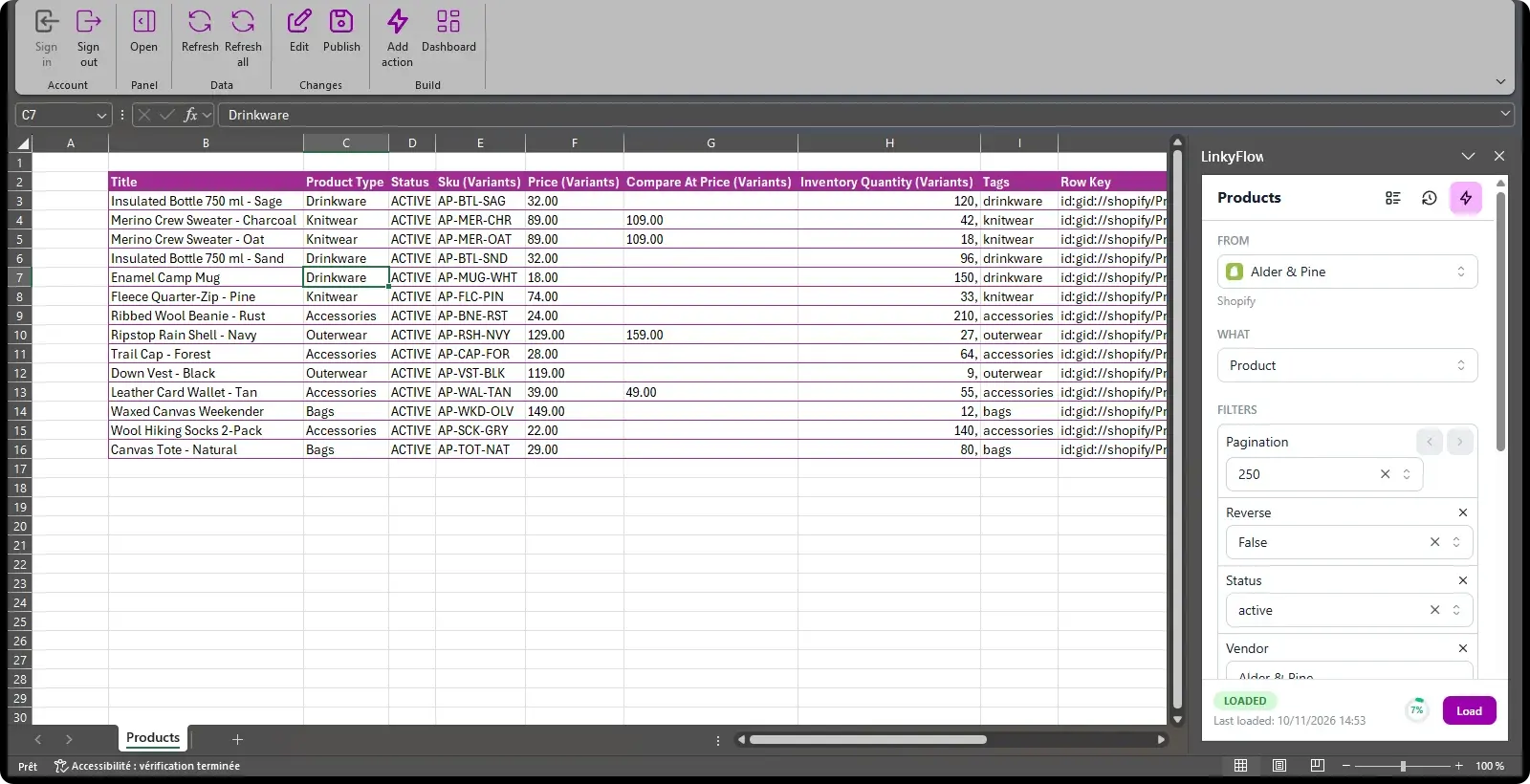
Live tables from the task pane
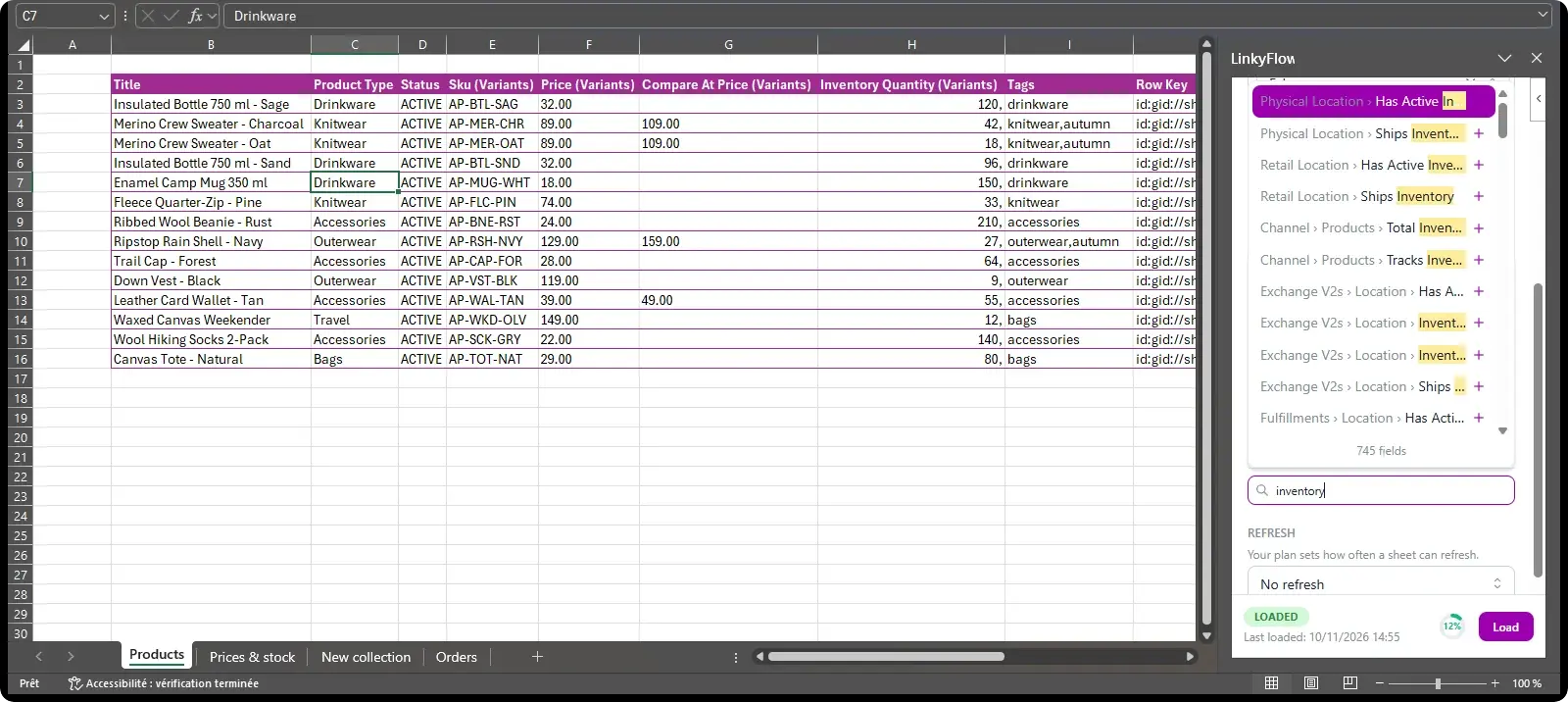
Pick a connection, a table, its filters and its columns, then Load: the table appears at the active cell, read from the platform as it is now. Refresh reloads it; Refresh all reloads every table of the worksheet.
PUBLISH
Edit in the sheet, review, publish
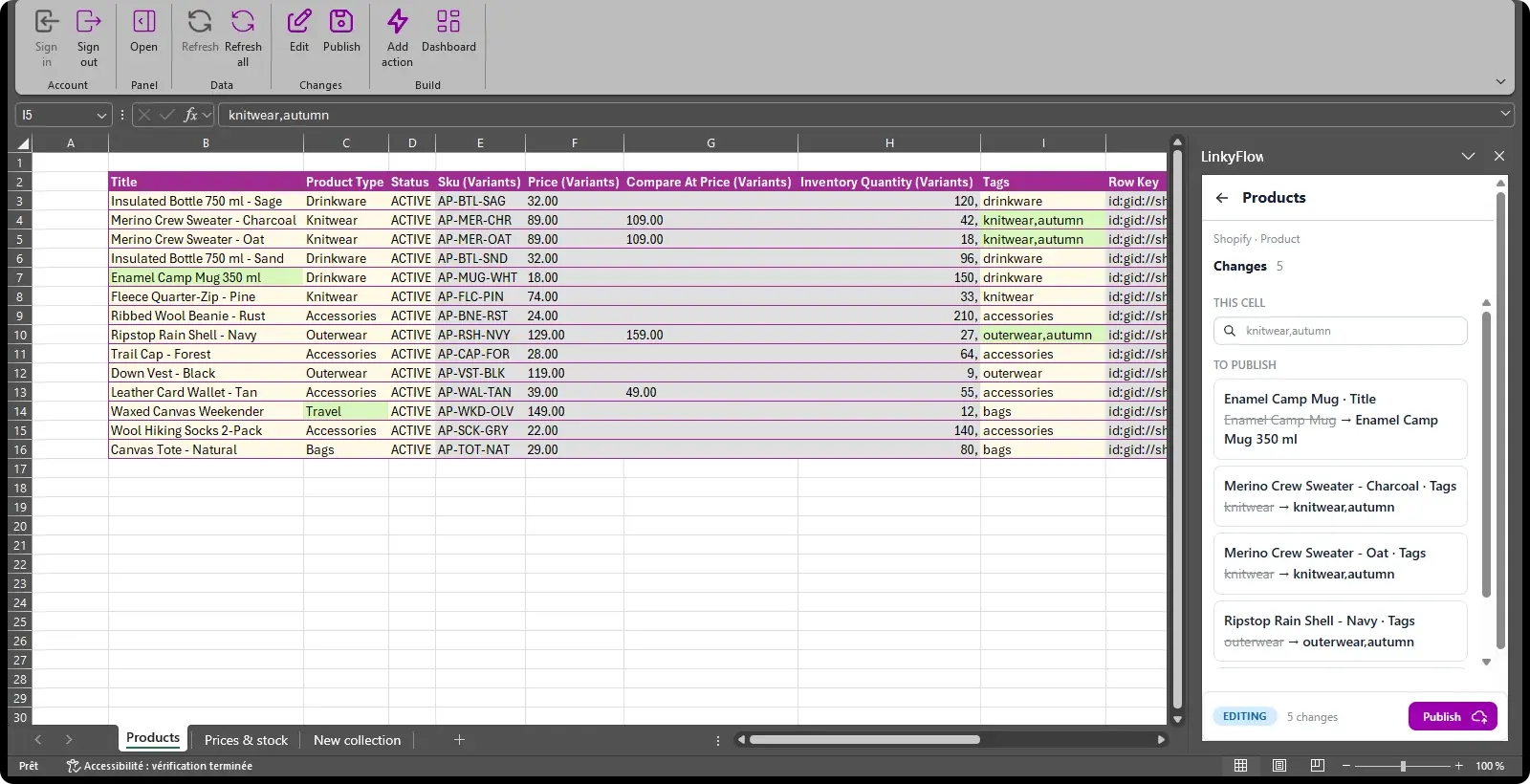
Edit the rows of a table and the Changes panel lists every change, what it was and what it becomes, before Publish sends it to the platform. A cell that cannot be changed goes back to its value, with a notice.
FUNCTIONS
=LF.* functions next to your formulas
The tables of the platforms above are also custom functions — =LF.shopify.orders, =LF.stripe.balanceTransactions, =LF.binance.getTicker24h. A function loads its table below the cell where you type it, so it lives in your own sheets, beside your formulas, pivots and charts.
REFRESH
On demand, or on a schedule
Auto-refresh reloads a table every hour, 30, 15 or 5 minutes, or every minute, while the workbook is open — as often as your plan allows. A workbook exported from the LinkyFlow web app opens connected, with its interval.
DASHBOARDS
Ready-made dashboards
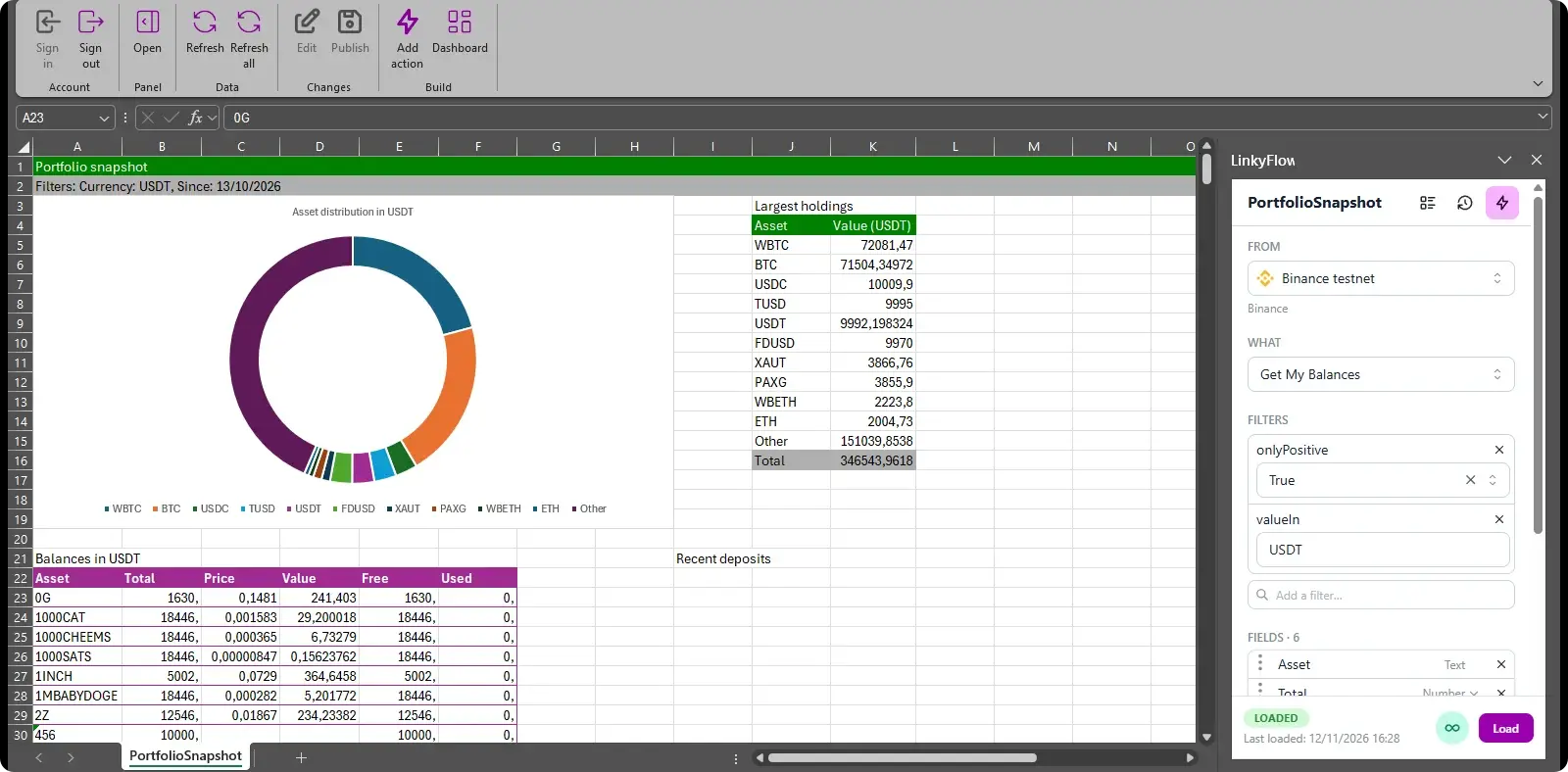
The Dashboard button builds pages for your exchanges and your stores — a portfolio snapshot, a symbol tracker, a multi-symbol watchlist — with their sheets and tables, from the connection you choose.
ACTIONS & AGENTS
Actions and agent results in the same workbook
Select a row and the Actions pane offers what the platform allows on it, with the same confirmation as the web app. Your agents’ results — current stock sync, reconciliations, Shopify finance rows, open exceptions — load as tables too.
3 STEPS
From install to your first table.
STEP 01
~1 min
Install the add-in
One click opens Excel with LinkyFlow. On Excel on the web, add it from Microsoft AppSource. Microsoft 365 or Excel 2021 and later, on Windows and Mac.
STEP 02
~1 min
Sign in
With Google, Discord or a code by email. Your store already uses LinkyFlow? Sign in with a code instead.
STEP 03
~2 min
Connect and load
Create a connection from the pane, pick a table, Load. Refresh whenever you want the numbers of now.
GUIDES
Go further, step by step.
Install the LinkyFlow Excel add-in
Install the free LinkyFlow add-in in Excel on Windows, Mac or the web, sign in, find its ribbon and panel, and load your first table from a connection.
Read →Export LinkyFlow data to a synced Excel workbook
Export a table loaded in the LinkyFlow web app as an Excel workbook wired to the add-in, so it refreshes instead of going stale, or as a static CSV or PDF.
Read →Write LinkyFlow =LF.* formulas in Excel
Write a LinkyFlow =LF.* formula in an Excel cell, choose its connection, filters and columns, and load a store's, a payment account's or an exchange's data.
Read →Build an Excel dashboard with the Page Builder
Open the LinkyFlow Page Builder from the Excel ribbon, pick a dashboard for your exchange or store, set its connection and filters, and build it in one sheet.
Read →Shopify orders and payouts in Excel, without CSV
Load Shopify orders, Shopify Payments payouts and balance transactions into Excel as live tables, refreshed on a schedule, or kept hourly by an agent.
Read →Stripe payouts, fees and net in Excel, automatically
Load Stripe payouts, balance transactions and the breakdown of each payout into Excel, with gross, fee and net per line, refreshed on a schedule.
Read →Your data, in your Excel.
Install the add-in, sign in, load your first table. Excel is part of every plan, the Free plan included.
Frequently asked questions
Which versions of Excel does it run in?
Microsoft 365 and Excel 2021 or later, on Windows and Mac, and Excel on the web.
Is the add-in free?
Yes, the add-in costs nothing to install. The Free plan includes Excel with one connection, 2,000 data lines a month and an hourly scheduled refresh; the paid plans add connections, data lines, a faster refresh and agents, Starter and Pro with a 15-day free trial.
Where are my platform keys?
On LinkyFlow’s servers: a key is never shown again once saved. The workbook holds no LinkyFlow sign-in either — it stays on your computer — so a file you share carries no access.
Does it change my data?
Only what you publish or run. Loading and refreshing read; a change reaches the platform when you publish it after reviewing the list of changes, or run an action you confirm.
What does a colleague without LinkyFlow see in my workbook?
A =LF.* cell reads “Sign in to LinkyFlow, then refresh this cell.” Your access never travels with the file.
Excel or the web app?
Either, or both: they load the same tables. A workbook exported from the web app stays connected in Excel, and Refresh keeps working.