
Shopify orders and Shopify Payments payouts in Excel: live tables instead of weekly CSV exports
Exporting orders from the Shopify admin gives you a file that is out of date the moment it lands, and payouts come from another screen again. With LinkyFlow, your Shopify orders, Shopify Payments payouts and the balance movements behind each payout load into Excel as tables that stay connected to the store: filter them, add the columns you need, refresh them on demand or on a schedule, and build your formulas and pivots next to them. If you would rather have one row per order, refund, payout and fee kept up to date for you, the Shopify Finance Sync agent does that every hour.
LinkyFlow only reads here: loading a table changes nothing in Shopify.
Before you start
- Your store connected from the Shopify App Store (Install LinkyFlow for Shopify), and the Excel add-in installed (Install the LinkyFlow Add-in). The same tables load in the web app, with nothing to install.
- Order history. Shopify serves 60 days of orders unless the store gave LinkyFlow access to all its orders, which is asked at install. A range LinkyFlow cannot fully read is reported as incomplete, never passed off as complete.
- Payouts need one more access. Shopify Payments data is an access the store grants after the install: in the web app, Connections, your store, Additional access, Grant in Shopify.
Orders: the Order table
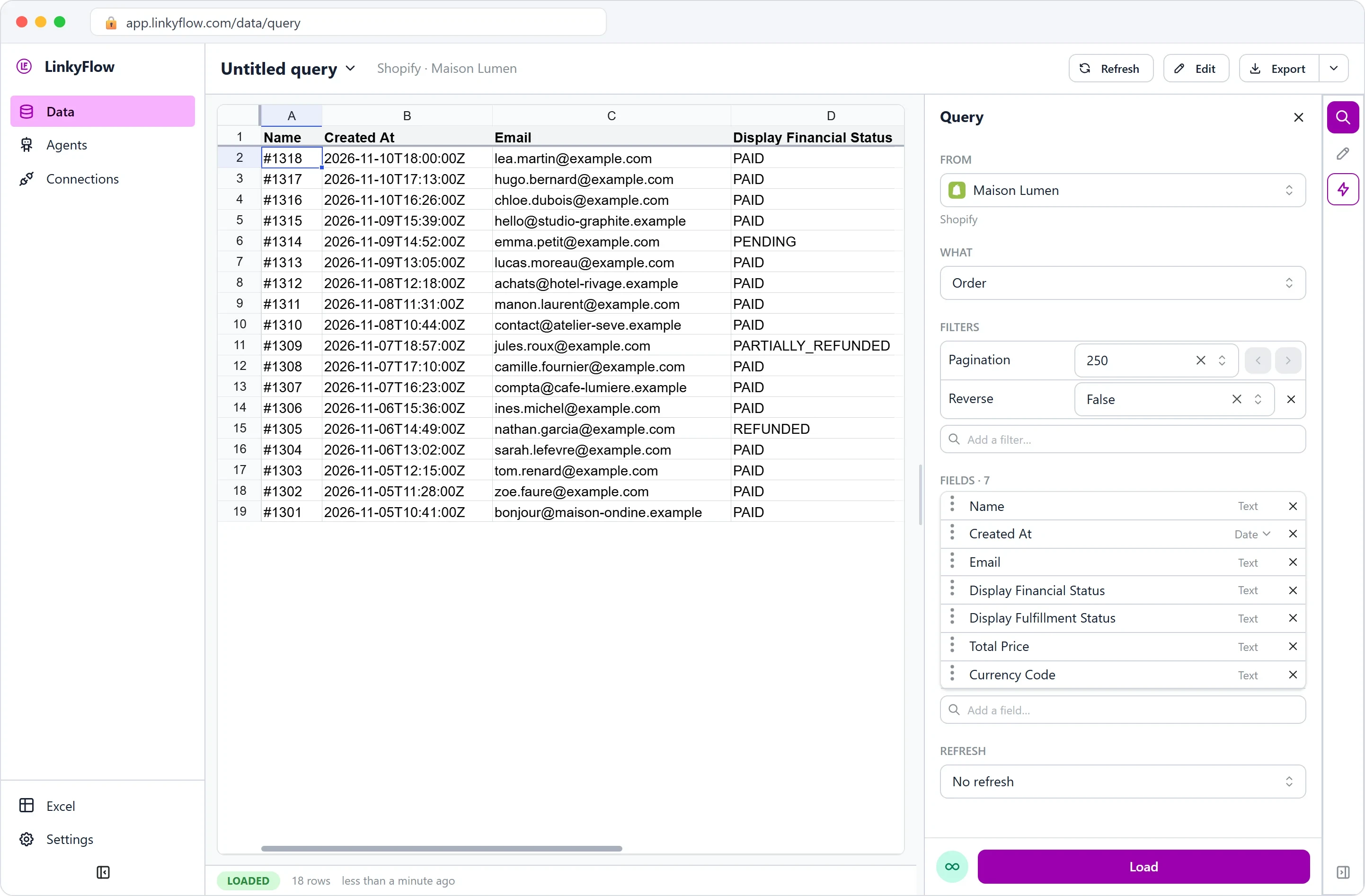
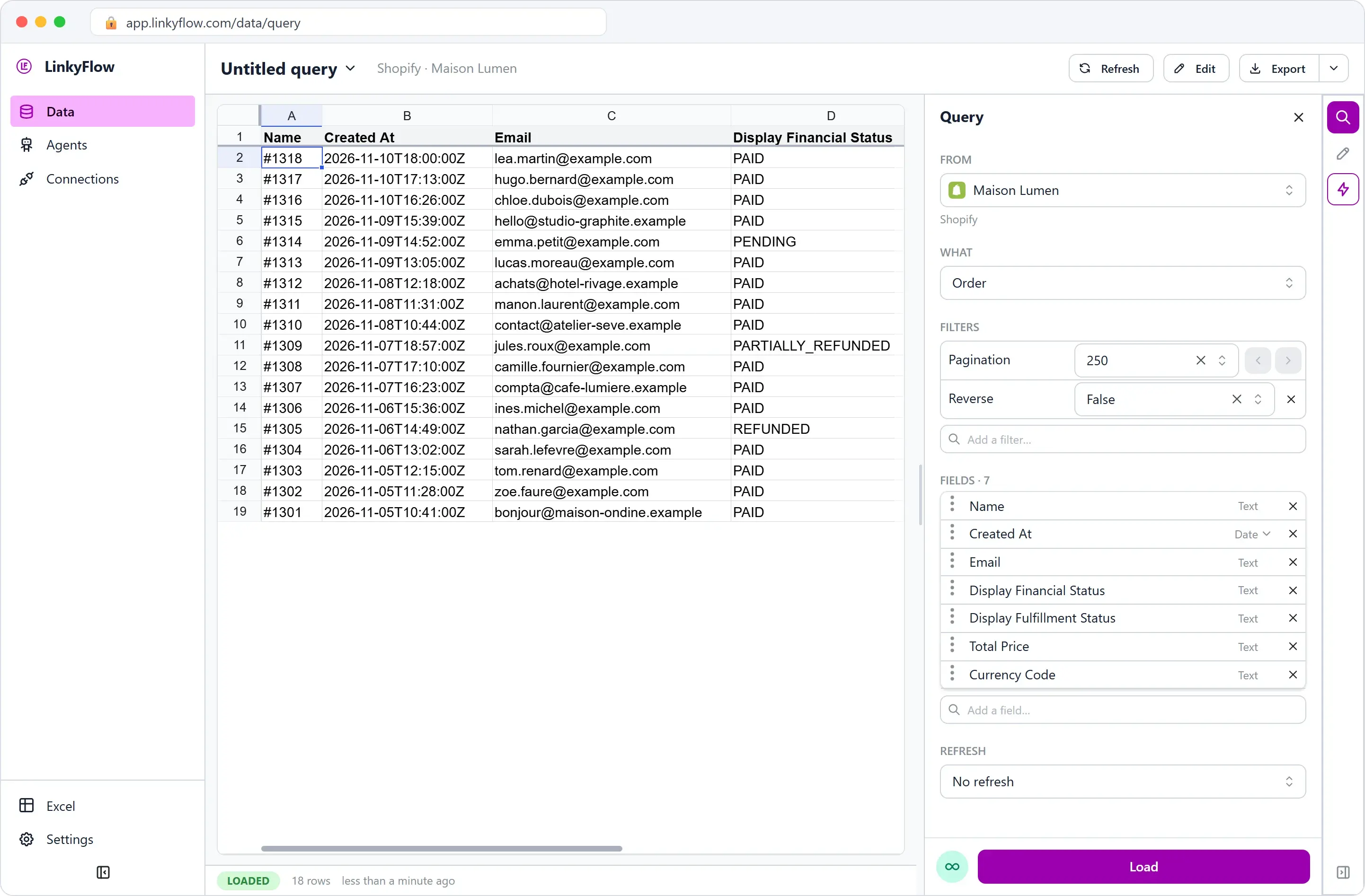
In Excel, open the LinkyFlow pane (LinkyFlow tab, Open). FROM your store, WHAT Order, then the filters and the fields, then Load: a live table appears at the active cell.
- Filters: creation date, processing date, financial status (paid, pending, authorized, partially paid, partially refunded, refunded, voided, expired), payment gateway (
shopify_payments, for instance), discount code, order name, status. - Fields worth adding: the order's name, creation and processing dates, financial and fulfilment status, subtotal, discounts and discount codes, shipping, tax, refunded amount, net payment, total, currency, and the payment gateways.
- Pages of 250 orders by default; the arrows next to Pagination move from one page to the next.
In the web app, the same panel loads the same table, and Export turns it into an Excel workbook that stays connected: open it, and Refresh keeps working.
Payouts: two tables, one level apart
| Table | What one row is | Useful filters |
|---|---|---|
| Shopify Payments Payout | one payout to your bank account: issue date, status (scheduled, in transit, paid, failed, canceled), gross and net, and Shopify's summary, which sets the fees on charges, on refunds and on adjustments apart from their gross | issue date, status |
| Shopify Payments Balance Transaction | one movement on the Shopify Payments balance: a charge, a refund, a dispute, an adjustment — amount, fee and net apart, with its order and its payout | payout date, payout status, processing date, transaction type |
Load the payouts of the month to see what reached the bank; load the balance transactions of one payout date to see which orders that payout paid, and what Shopify kept on each.
Shopify states each amount with its currency; nothing is converted.
The same tables as functions
Each of these tables is also a custom function in Excel: =LF.shopify.orders, =LF.shopify.shopifyPaymentsPayouts, =LF.shopify.shopifyPaymentsBalanceTransactions. A function loads its table below the cell where you type it, so it can sit in a sheet of your own, next to your formulas; Refresh on the LinkyFlow tab loads it again.
Refreshed when you say
- On demand: Refresh reloads the selected table, Refresh all every table of the worksheet.
- On a schedule: in the query's options, Auto-refresh reloads the table every hour, 30, 15 or 5 minutes, or every minute, while the workbook is open in Excel with the add-in signed in. How often depends on the plan: every hour on Free, every 15 minutes on Starter, every minute on Pro and Business.
- A workbook exported from the web app keeps the interval you set there.
Or let an agent keep the rows: Shopify Finance Sync
When you want every order, transaction, refund, payout, balance transaction and dispute kept as one row each, with gross, tax, fee and net apart and the ids that tie them together, add the Shopify Finance Sync agent (Agents, Add agent). It reads the store's history once, then what changed every hour; a payout's status and the payout a movement joins are read again once a day. It is read-only and computes no amount: an empty column means Shopify did not state that amount, never zero. A source the store has not granted is reported as such, and read once the access is there.
On the agent's page, Current Shopify finance rows holds the rows; filter it on one source (payouts, balance transactions…) and Export it to a connected workbook. A row not changed for 180 days expires. The agent runs on a paid plan: Starter runs one active agent, with a 15-day free trial.
The limits
- 60 days of orders without the access to all orders.
- Shopify Payments only for payouts: a store paid out by another provider has no such rows. Stripe payouts are read from your Stripe account: Stripe payouts, fees and net in Excel.
- Auto-refresh runs in an open workbook. The agent, on the other hand, runs on LinkyFlow's servers, Excel open or not.
- Free plan: one connection, 2,000 data lines a month, an hourly refresh at most.
FAQ
Does loading orders change anything in Shopify? No. Loading reads. A change reaches Shopify only when you edit a table and publish it, after reviewing every change.
Is it the same data as Shopify's payout report? It is what Shopify's Admin API states for each payout and balance movement, read live. LinkyFlow adds nothing and converts nothing.
Go further
- Shopify Finance Sync agent: every source, every status.
- Reconcile Shopify with Stripe payments and fees, if your sales go through Stripe.
- LinkyFlow for Shopify and the Excel add-in.