
Stripe payouts, fees and net in Excel, refreshed on a schedule
Stripe pays you a net amount; your books need the gross, the fees and what each payout contains. With LinkyFlow, your Stripe account loads into Excel as live tables — the payouts, every movement on your balance with its fee and net, and the breakdown of one payout line by line — refreshed on demand or on a schedule, with no CSV to download and re-import. LinkyFlow only reads here: nothing changes in your Stripe account.
The payout below is an illustrative example: its figures are not Stripe's pricing and come from no real account.
Before you start
- Stripe connected with a secret key or a restricted key, typed in LinkyFlow's connection form (Stripe connection setup). Reading is all this needs: a restricted key with read access to what you load is enough.
- The Excel add-in installed (Install the LinkyFlow Add-in), or the web app, which loads the same tables with nothing to install.
Three tables, three levels
| Table | What one row is | Filters |
|---|---|---|
| Payouts | one payout to your bank: amount, currency, status, arrival date, method | created after and before, status (pending, in transit, paid, failed, canceled) |
| Balance Transactions | one movement on your Stripe balance — a charge, a refund, a payout, a Stripe fee: amount, fee, net, currency, the date the funds become available | created after and before, type |
| Payout Reconciliation | one charge, refund or fee inside a chosen payout, with Gross, Fee and Net | the payout, required |
In Excel, open the LinkyFlow pane, FROM your Stripe account, WHAT one of the three, set the filters, Load: the table appears at the active cell. Each is also a custom function — =LF.stripe.payouts, =LF.stripe.balanceTransactions, =LF.stripe.payoutReconciliation — which loads the same table below the cell where you type it.
Read the amounts right
Stripe gives amounts in the currency's smallest unit: in euros or dollars, cents. 14990 is €149.90. Divide by 100 in a column next to the table (=C2/100) for currencies with cents, and keep the Currency column beside it: Stripe does not convert, and neither does LinkyFlow.
What one payout contains
Payout Reconciliation, with one payout chosen. Illustrative example, amounts in cents:
| Type | Gross | Fee | Net |
|---|---|---|---|
| charge | 14990 | 247 | 14743 |
| charge | 5900 | 113 | 5787 |
| refund | -2500 | 0 | -2500 |
| Total | 18390 | 360 | 18030 |
The net total is what reached your bank: €180.30. The fee column is what Stripe kept, line by line, so a monthly fee total is one SUM away, and each row's ID finds its charge or refund in Balance Transactions.
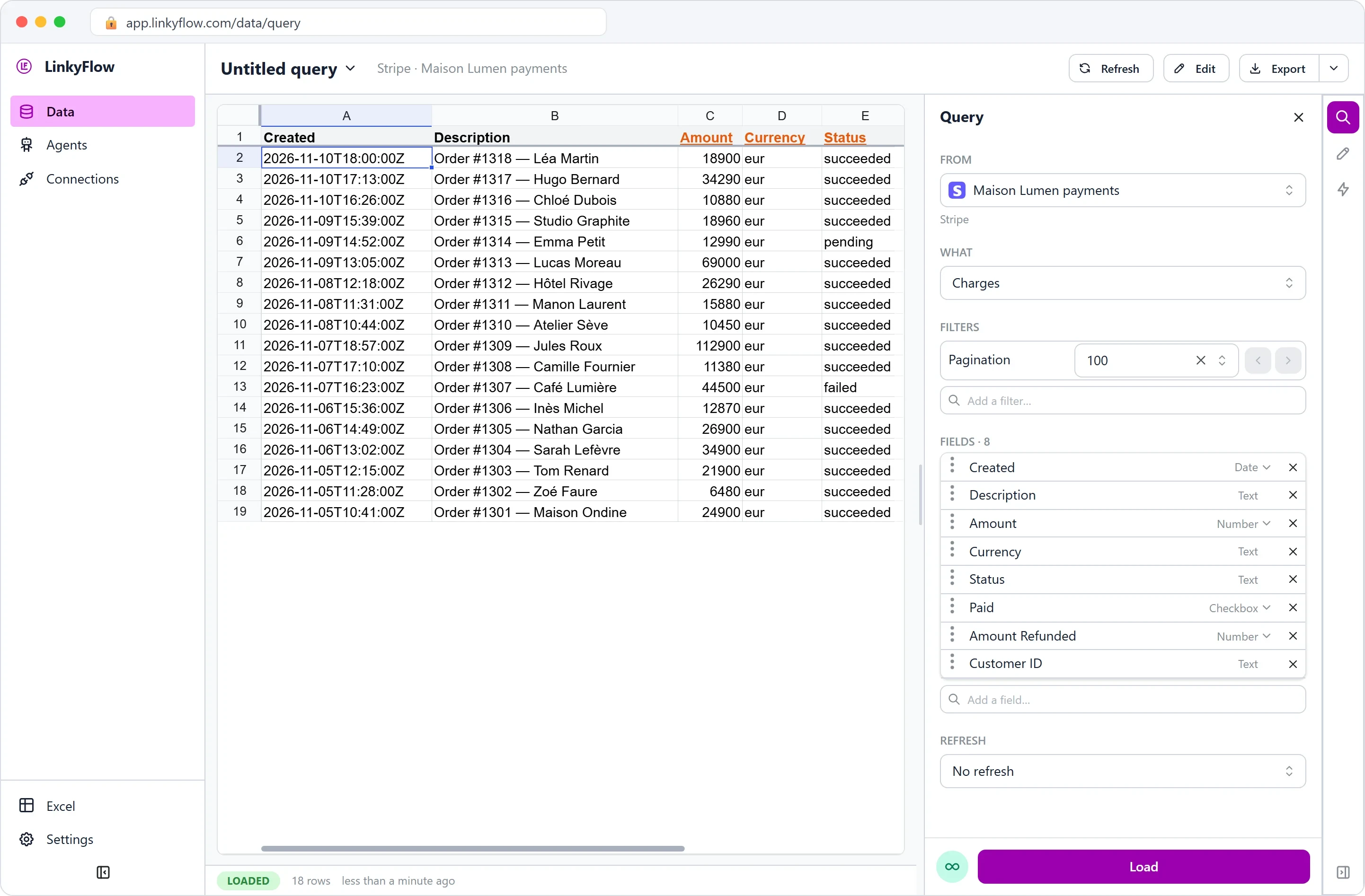
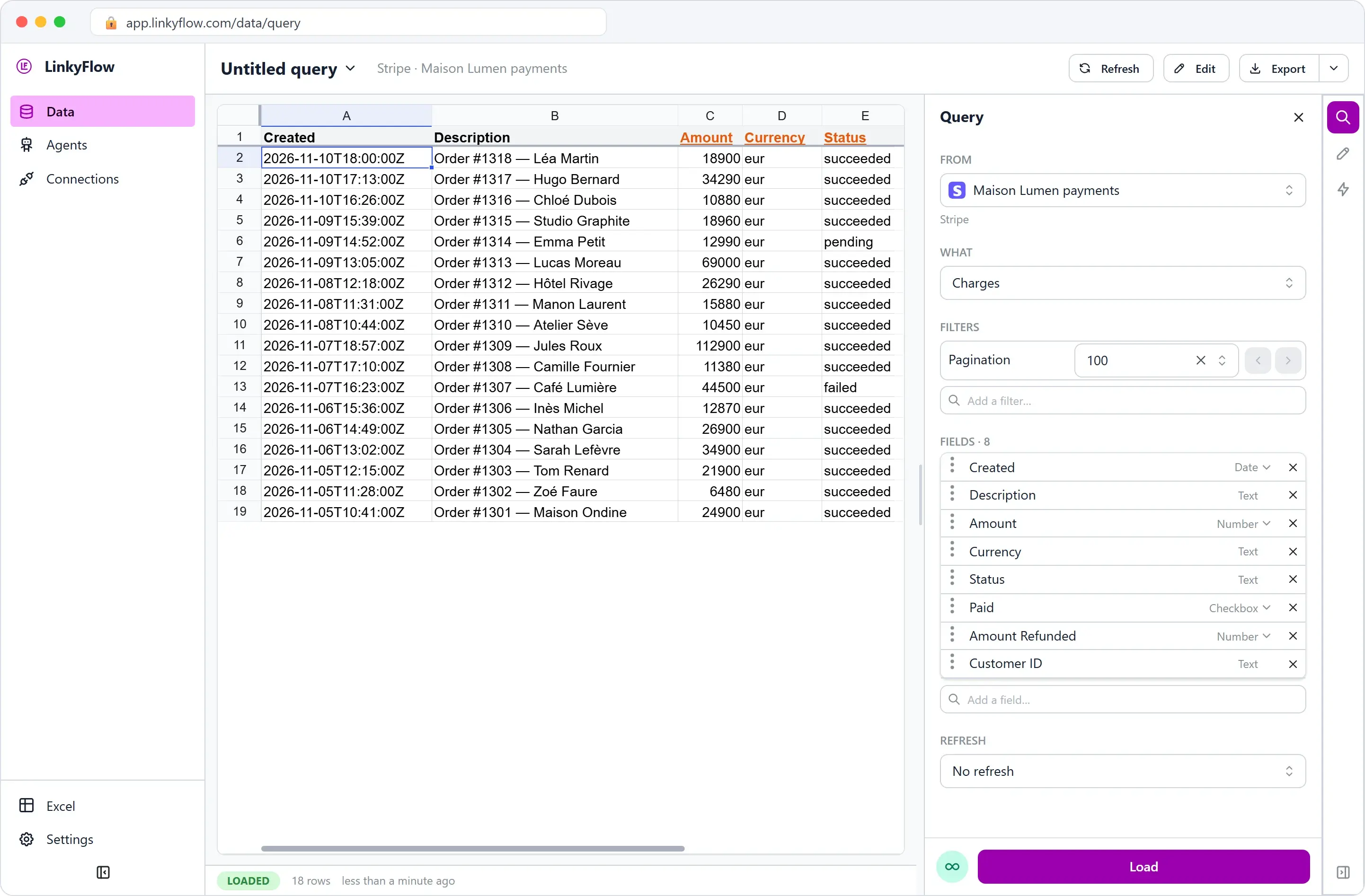
Stripe's charges table names the order in its description when your store sends it, as in this one:
Automatically
- Auto-refresh: in the query's options, reload a table every hour, 30, 15 or 5 minutes, or every minute, while the workbook is open in Excel with the add-in signed in. How often depends on the plan: every hour on Free, every 15 minutes on Starter, every minute on Pro and Business.
- From the web app: load the table, then Export: the workbook stays connected and keeps the refresh interval you set.
- Refresh and Refresh all, on the LinkyFlow tab, reload on demand.
A workbook built once — the payouts of the month on one sheet, the payout's lines on another, your totals beside them — is current every time you open it, instead of rebuilt each month.
Ask instead of filtering
With LinkyFlow added to ChatGPT or Claude (ChatGPT, Claude), ask "What made up my last Stripe payout?": the payout reconciliation tool answers its gross, fees, refunds, adjustments and net. The assistant reads through your connection and never sees your Stripe key.
Selling on Shopify through Stripe?
The Shopify + Stripe Reconciliation agent checks every Shopify sale paid through Stripe against the Stripe payment each hour, and records the fee Stripe actually took and the net for each sale. Reconcile Shopify with Stripe payments and fees traces a payout back to its orders. Shopify Payments is paid out by Shopify, not Stripe: Shopify orders and payouts in Excel.
The limits
- Read-only here. These tables read your Stripe account; no payout, refund or charge is created from them.
- No bank reconciliation. LinkyFlow shows what Stripe paid out, not what your bank received.
- A payout's breakdown is one payout at a time, up to 100 lines per page, with no date filter of its own: pick the payout from the Payouts table.
- Free plan: one connection, 2,000 data lines a month, an hourly refresh at most.
FAQ
Is the fee the one Stripe actually charged? Yes: it is the fee Stripe states on each balance transaction, not a rate applied by LinkyFlow.
Can I see payouts for several Stripe accounts? Yes, one connection per account; each table is loaded from the account you pick in FROM.
Does it work in the web app too? Yes, the same three tables, and Export turns any of them into a connected Excel workbook.
Go further
- LinkyFlow for Stripe: payments, invoices, subscriptions and payouts in Excel or on the web.
- Revenue & payouts dashboard, from charges and balance transactions.
- The Excel add-in.