
Black Friday on Shopify, prepared in one sheet
Black Friday 2026 falls on Friday 27 November and Cyber Monday on 30 November. Deciding the discount takes five minutes. Applying it to the right products without a mistake, checking it went through, and putting every price back on Tuesday morning is what eats the week.
This walkthrough runs the whole campaign on our demo store, Alder & Pine (17 outdoor products, prices in euros), with LinkyFlow. Every step below was played on the store itself, and every screenshot shows what the store answered. We use the LinkyFlow web app; the Excel add-in has the same Query panel and the same list of changes, so each step works the same in a workbook.
The plan
- Choose the products: what is overstocked (60 units or more) and is not a new arrival.
- Tag them
black-friday-2026: one handle for the collection, the reports and the clean-up. - Mark them down by 25 %, the current price kept as the compare-at price, so the store shows it struck through.
- Group them in a collection for the home page and the newsletter.
- Create the code: an extra 10 % from €80, from 27 November to the end of Cyber Monday, once per customer.
- Watch stock and orders during the weekend.
- Put everything back on 1 December.
1. Choose the products
In the Query panel, FROM is the store and WHAT is Product. Instead of exporting the catalog and sorting it, let Shopify do the choosing with four filters:
- Vendor = Alder & Pine
- Status = active
- Inventory Total ≥ 60: the overstock
- Tag Not =
new-in: new arrivals stay at full price
Keep the fields you need to decide (Title, Product Type, Tags, Total Inventory, Status) and click Load. Seven products come back: bottles, the camp mug, the beanie, the cap, the socks and the tote.
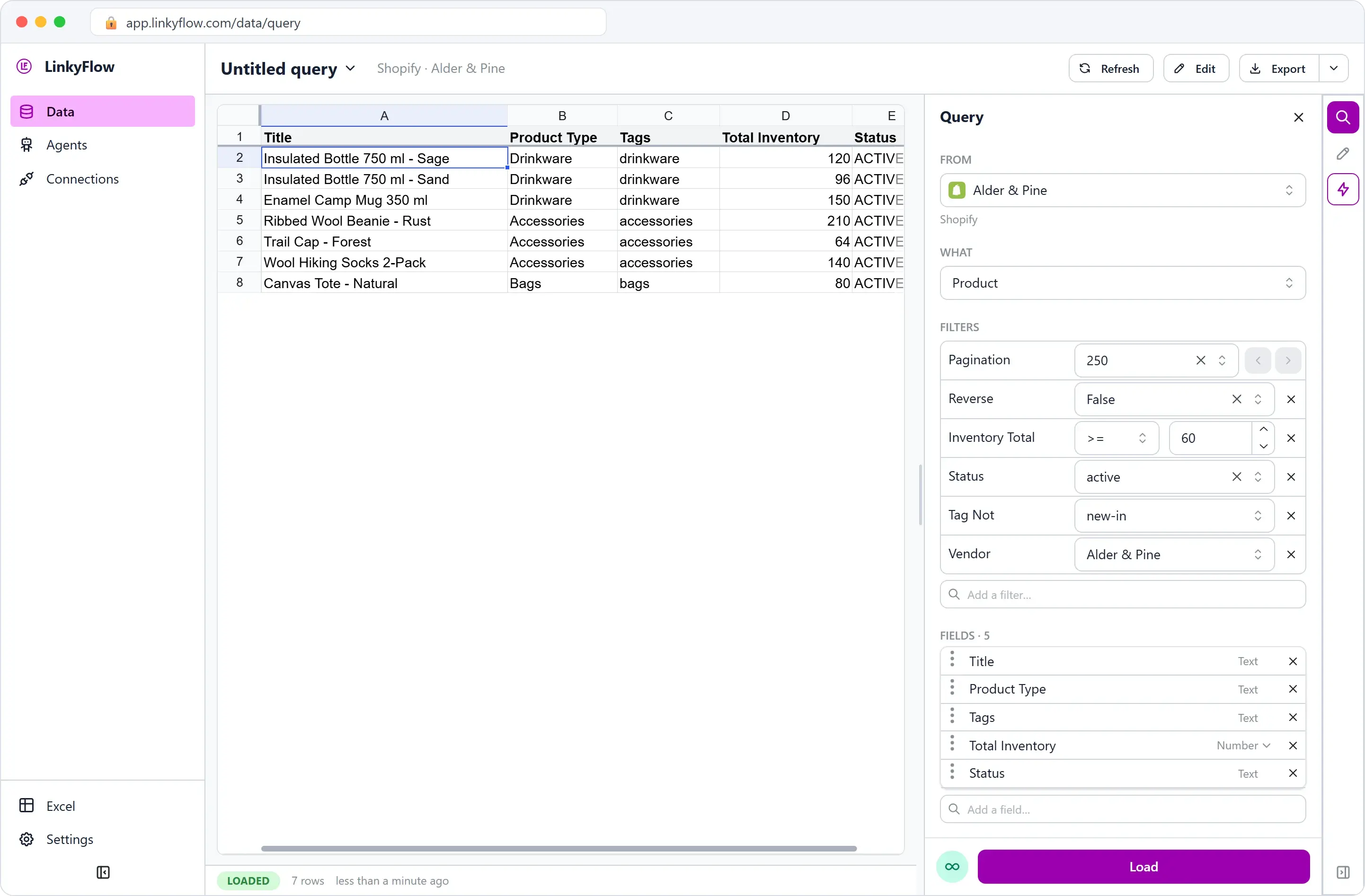
Save the query from its name's menu ("Save as new query…") as Black Friday — selection: you will open it again on 1 December.
2. Tag them
Click Edit. Each product's Tags cell holds its tags separated by commas: add black-friday-2026 after the existing ones (keep them, the cell is the whole list). The Changes panel lists every edit, the old value struck through beside the new one, and nothing reaches Shopify until you click Publish.
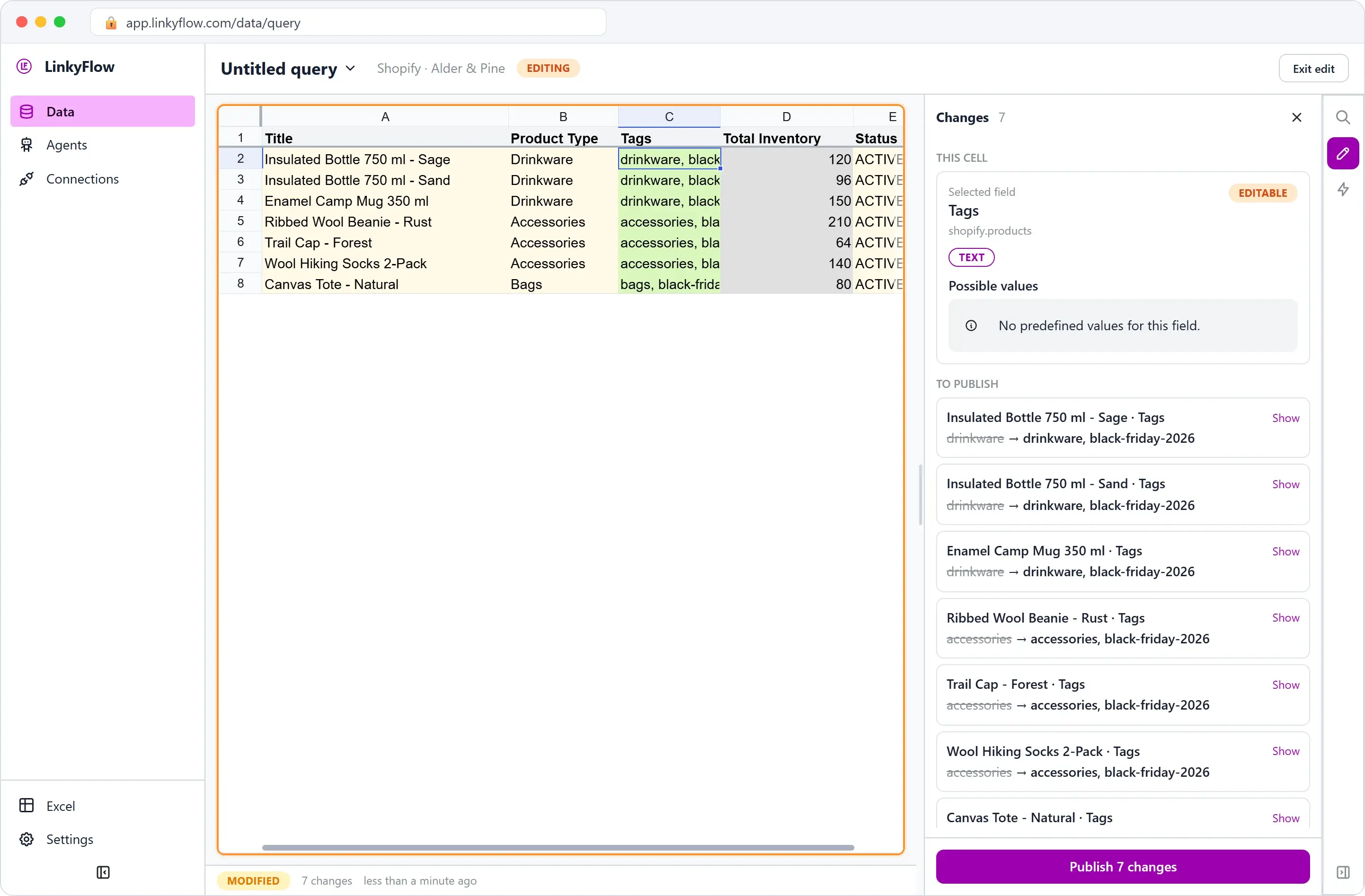
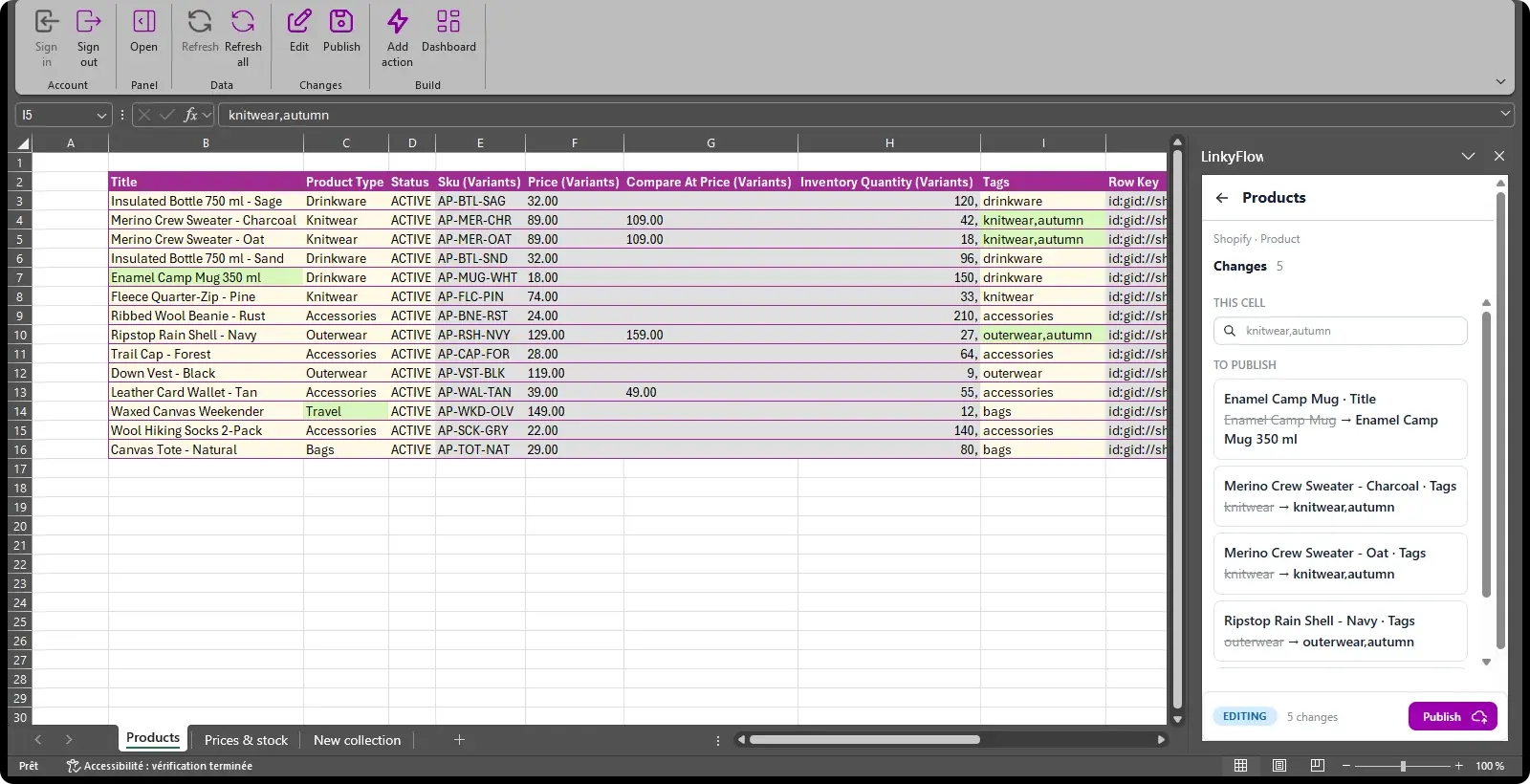
Publish 7 changes. In Excel it is the same edit in the cells of the sheet, the same list in the LinkyFlow pane:
Why a tag rather than a list kept somewhere? Because Shopify filters on it everywhere: the next steps select the sale's variants by this tag, the collection fills itself from it, and removing it is the clean-up.
3. Mark them down
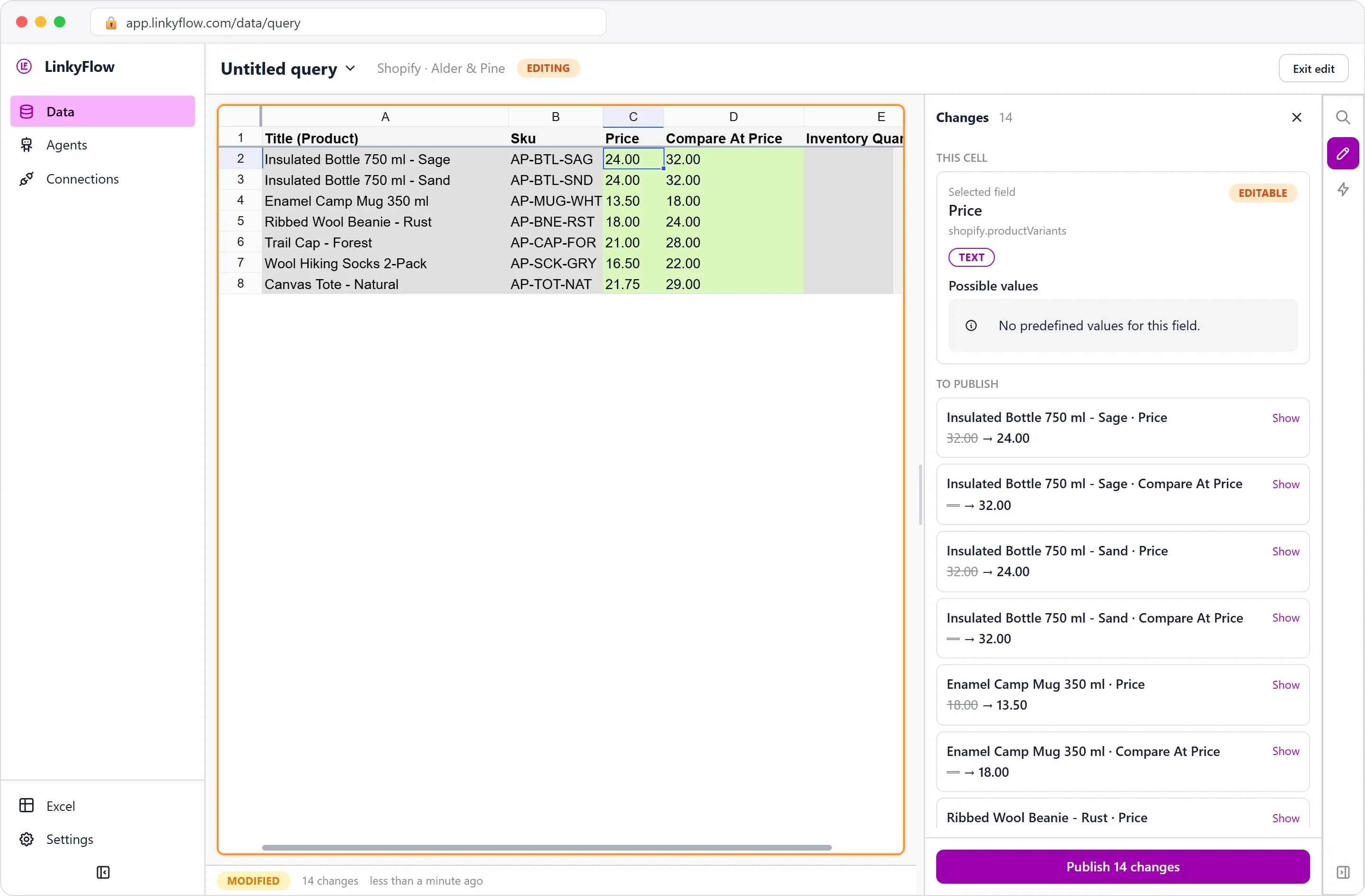
Prices live on variants. In WHAT, choose Product Variant, filter on Tag = black-friday-2026 (the variants of the tagged products) and keep Title (Product), SKU, Price, Compare At Price and Inventory Quantity. Load, then Edit:
- Compare At Price takes the current price, here 32.00 for the bottles;
- Price takes the sale price, 25 % off: 32.00 becomes 24.00, 18.00 becomes 13.50, 29.00 becomes 21.75.
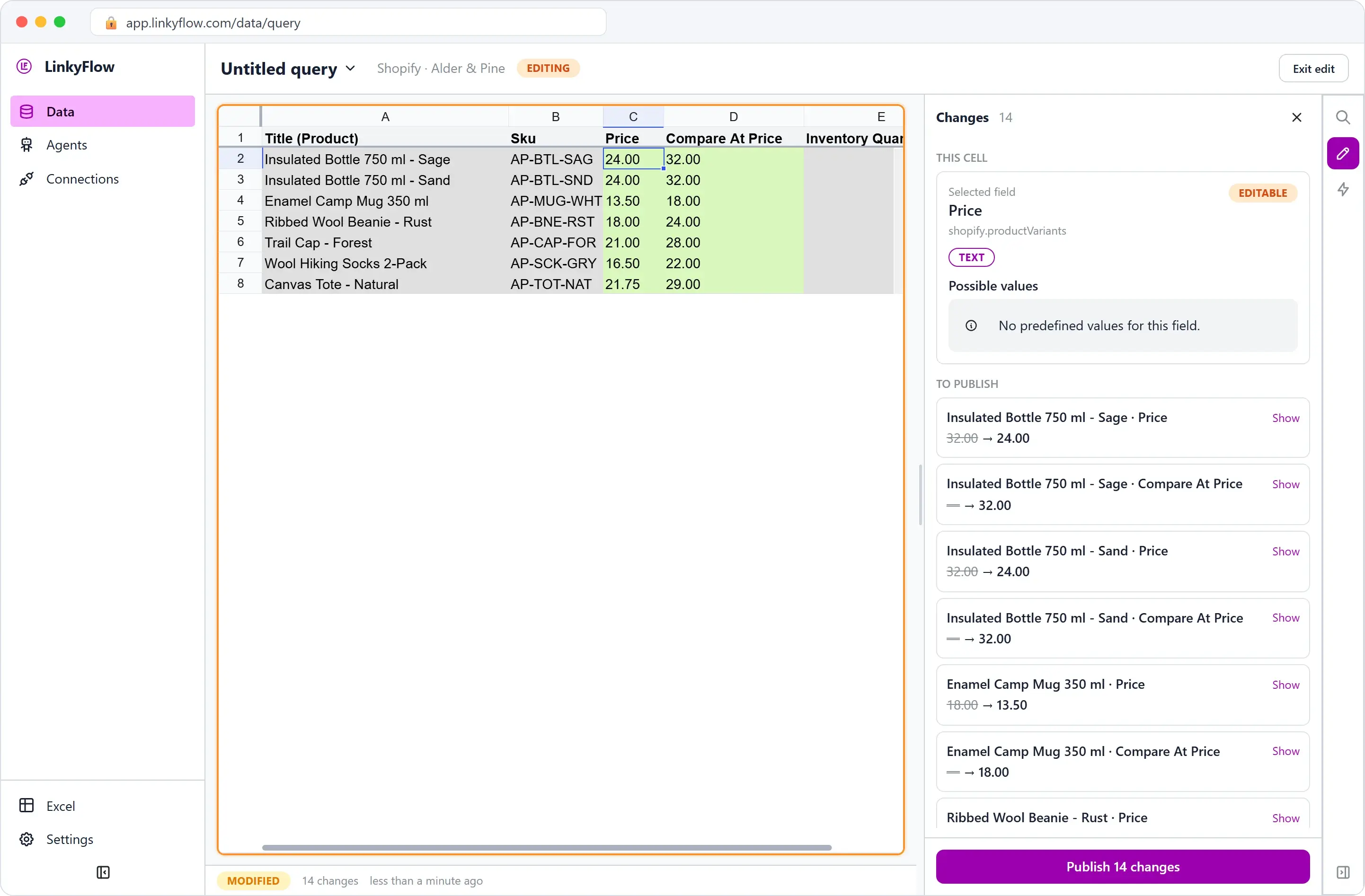
The Changes panel names each change by its product, so you can check line by line before Publish 14 changes. In Excel, you can compute the sale price with a formula in a free column (=ROUND(C2*0.75,2)) and paste the values into Price.
Your theme shows the compare-at price struck through next to the price as long as it is the higher of the two. To check from LinkyFlow, reload the products with the Is Price Reduced filter set to True.
4. A collection for the campaign
This one is done in Shopify, once: Products → Collections → Create collection, an automated collection with the condition Product tag is equal to black-friday-2026. It fills itself with the seven products, and empties itself when the tag goes. Link it from your home page and your newsletter.
5. The discount code
In WHAT, the Create group lists what LinkyFlow can create in the store. Choose Create Code Discount; its template opens with the main fields. Add, with Add a field, the ones a code like this needs:
| Field | Value |
|---|---|
| Title | Black Friday 2026 - extra 10% from 80 |
| Code | BLACKFRIDAY |
| Starts At / Ends At | 2026-11-27 / 2026-12-01 |
| Customer Gets › Value › Percentage | 0.1 (that is 10 %) |
| Customer Gets › Items › All | true |
| Context › All | ALL (every customer) |
| Minimum Requirement › Subtotal › Greater Than Or Equal To Subtotal | 80 |
| Applies Once Per Customer | true |
| Tags | black-friday-2026 |
Fill one row: the list of changes shows exactly the ten values that will be sent, and the template's empty rows are left out.
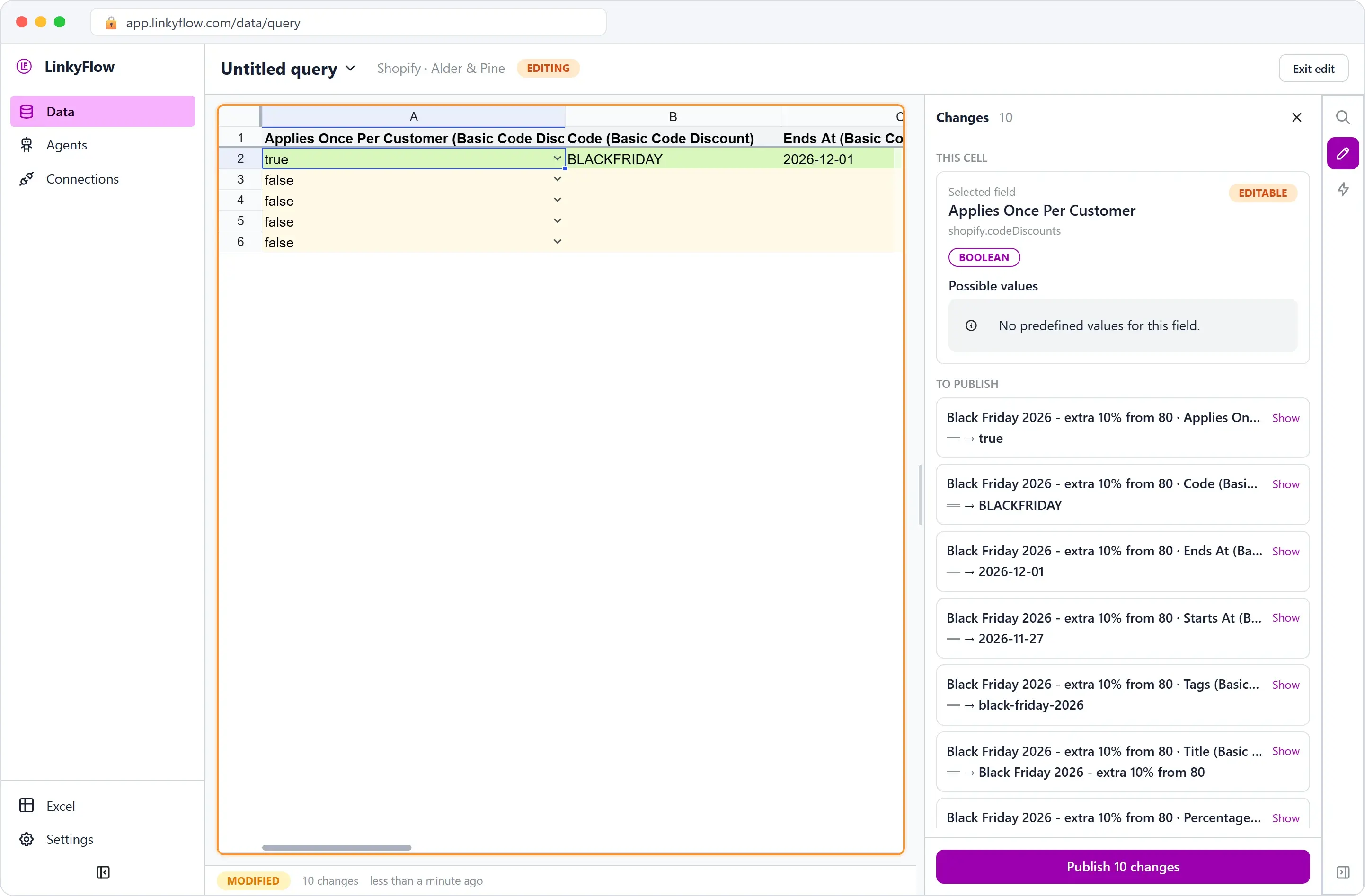
Publish: the code appears in Shopify's Discounts as Scheduled, "10% off… Minimum purchase of €80.00", for all customers. The sale prices are prices, not discounts, so the code comes on top of them.
Creating discounts needs a permission the store gives LinkyFlow once, after the install. If it is missing, Create Code Discount is greyed out in WHAT with the reason, and the connection's page in LinkyFlow has the button that asks Shopify for it.
6. During the weekend
- Stock: the variant query of step 3, with Inventory Quantity, saved as Black Friday — stock. Refresh it when you want, or let it refresh on its own (the REFRESH option, as often as your plan allows). A product about to sell out shows before it does.
- Orders that used the code: WHAT Order, filter Discount Code =
BLACKFRIDAY, with the order number, date and total. Exported or opened in Excel, it is the sheet for the debrief.
7. On 1 December, put everything back
The code ends by itself on 1 December. The prices and the tag are yours to restore, and it takes two minutes:
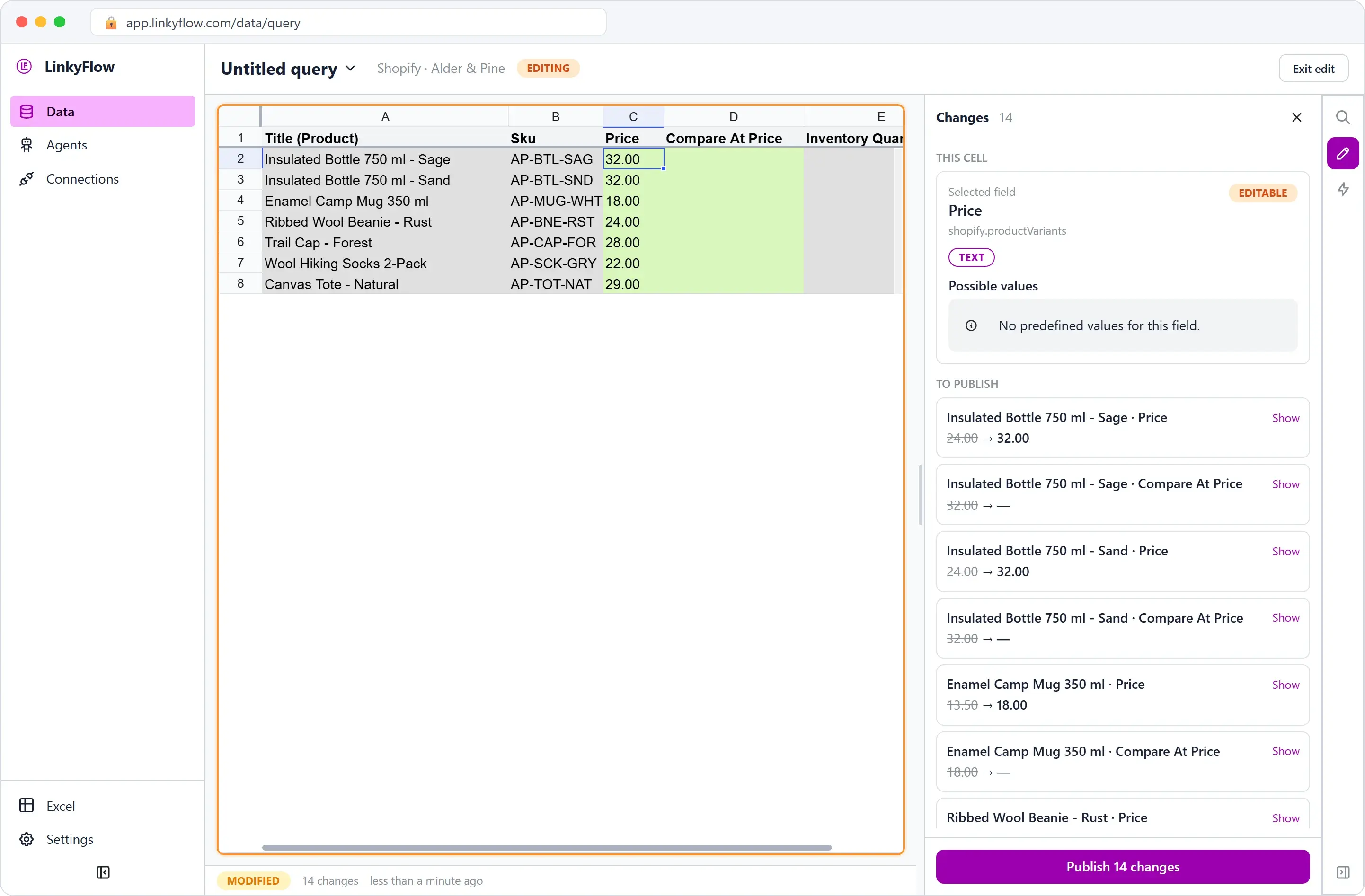
- Open the variant query of step 3, Edit, copy the Compare At Price column and paste it into Price: every product is back at its full price.
- Select the Compare At Price cells and press Delete: an emptied cell is published as cleared, and Shopify removes the compare-at price.
- Publish 14 changes.
- Open Black Friday — selection, take
black-friday-2026out of each Tags cell and Publish: the collection empties itself.
That is the store as it was on 26 November, apart from the sales.
Checklist
- The products, by filters: vendor, status, inventory total, tags to leave out.
- One tag for the campaign, added in bulk and published.
- Compare-at price = old price, price = sale price, checked line by line before Publish.
- The automated collection on the tag, in Shopify.
- The code, dated, with its minimum and once per customer.
- Two saved queries: the selection and the stock.
- 1 December: prices back from the compare-at column, compare-at emptied, tag removed.
New to LinkyFlow? Install it for Shopify, then read LinkyFlow for Shopify. To create products in bulk the same way, see Create Shopify products from Excel.