Lila Studio, chapter 2: the delivery
The van comes at 8 a.m. Sixty boxes of restock: beanies, the new charcoal hoodies, three sizes of the logo tee. Léa signs for it, drags the pallet into the spare room that is still, technically, her bedroom, and faces the part of the day she dreads.
Because right now her shop is lying. The website says "out of stock" on half these items. Customers who wanted the charcoal hoodie last week gave up. Until the numbers in WooCommerce match the boxes on her floor, every one of these is a sale she's quietly turning away.
In chapter 1 she learned to see her shop in one table. Today she finds out if she can fix it from there — before her first coffee goes cold.
The old way was brutal: open the admin, find a product, edit, save, find the next product, edit, save. Sixty times. She'd done it before. It ate a morning and she always mistyped at least one.
How WooCommerce stock actually thinks
Before she touches anything, one thing is worth knowing, because it's where people lose an afternoon. WooCommerce only tracks a number when stock management is on for that product. Three fields are in play:
- Manage Stock — whether WooCommerce counts units at all.
- Stock Quantity — the actual number on hand (only honoured when Manage Stock is on).
- Stock Status — in stock / out of stock / on backorder.
The kind part: when Léa types a quantity, stock management switches on by itself — exactly like the admin. So she doesn't have to think about it. She just types the count.
She loads only what the van brought
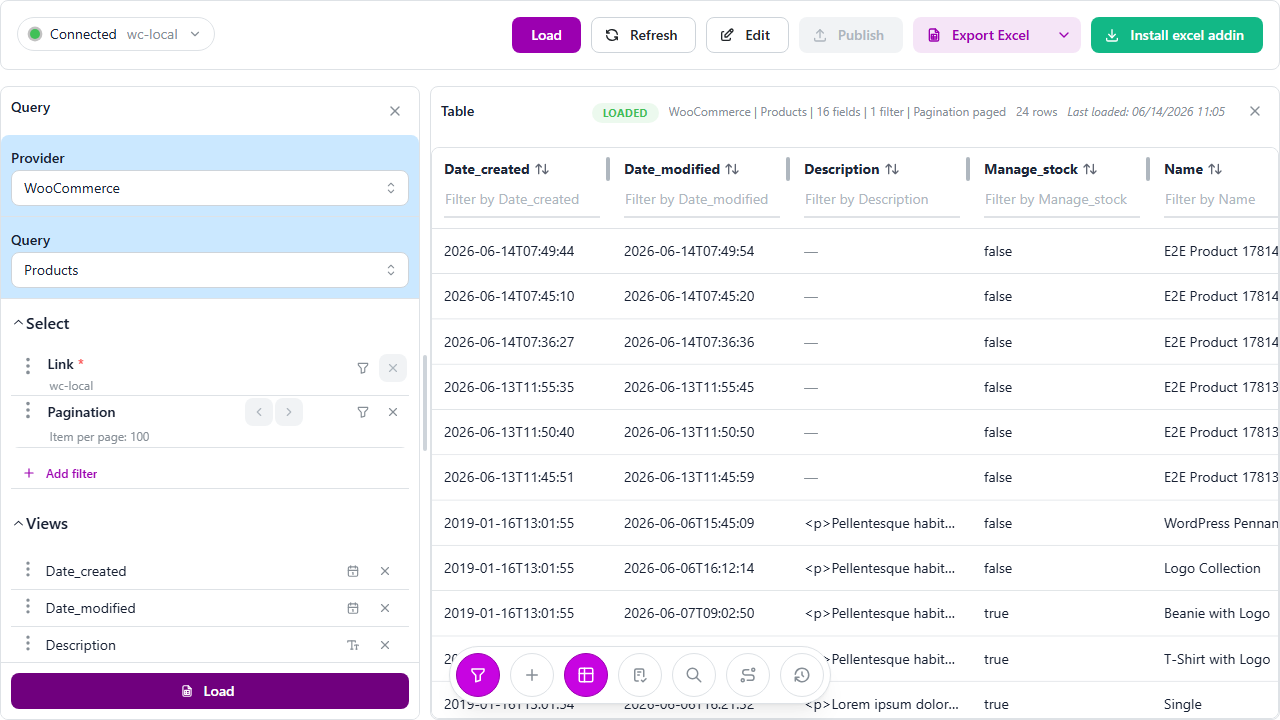
She doesn't want all 24 products — she wants the ones on her floor. So she loads Products and adds a filter, by category, so the table holds just the restocked lines. Fewer rows, fewer ways to slip.
One click turns the table into a worksheet
She hits Edit. The table wakes up. Two panels slide in on the right:
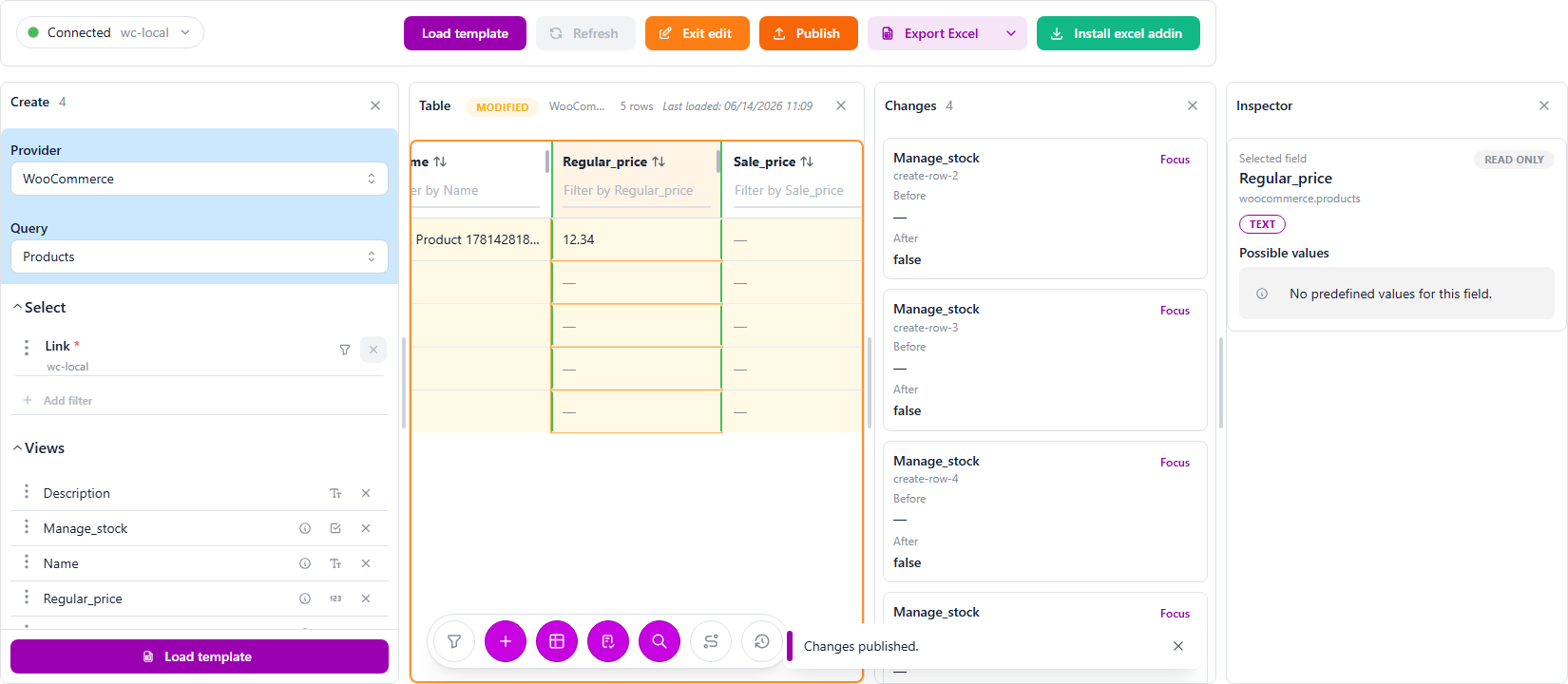
- Changes keeps a running list of every cell she touches — the old value, the new value. It's a receipt of exactly what she's about to do.
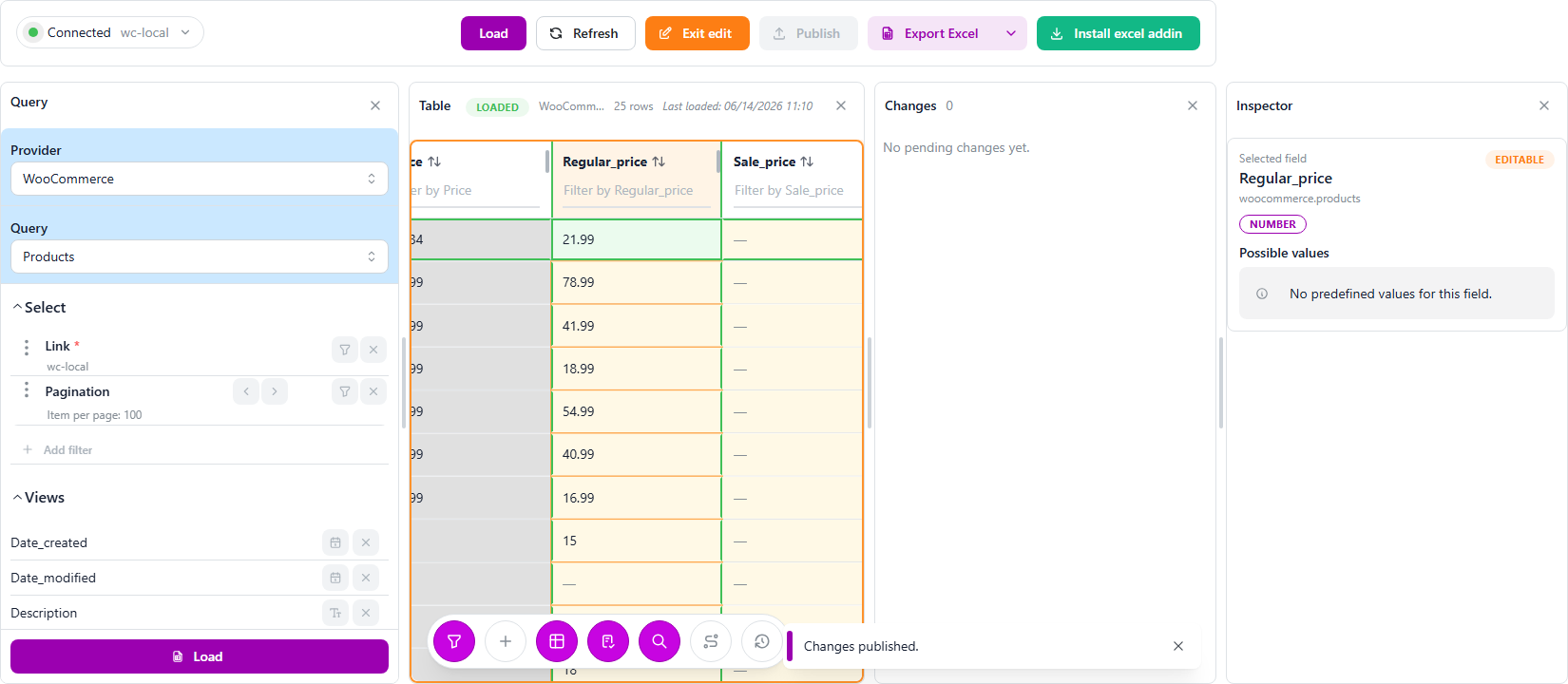
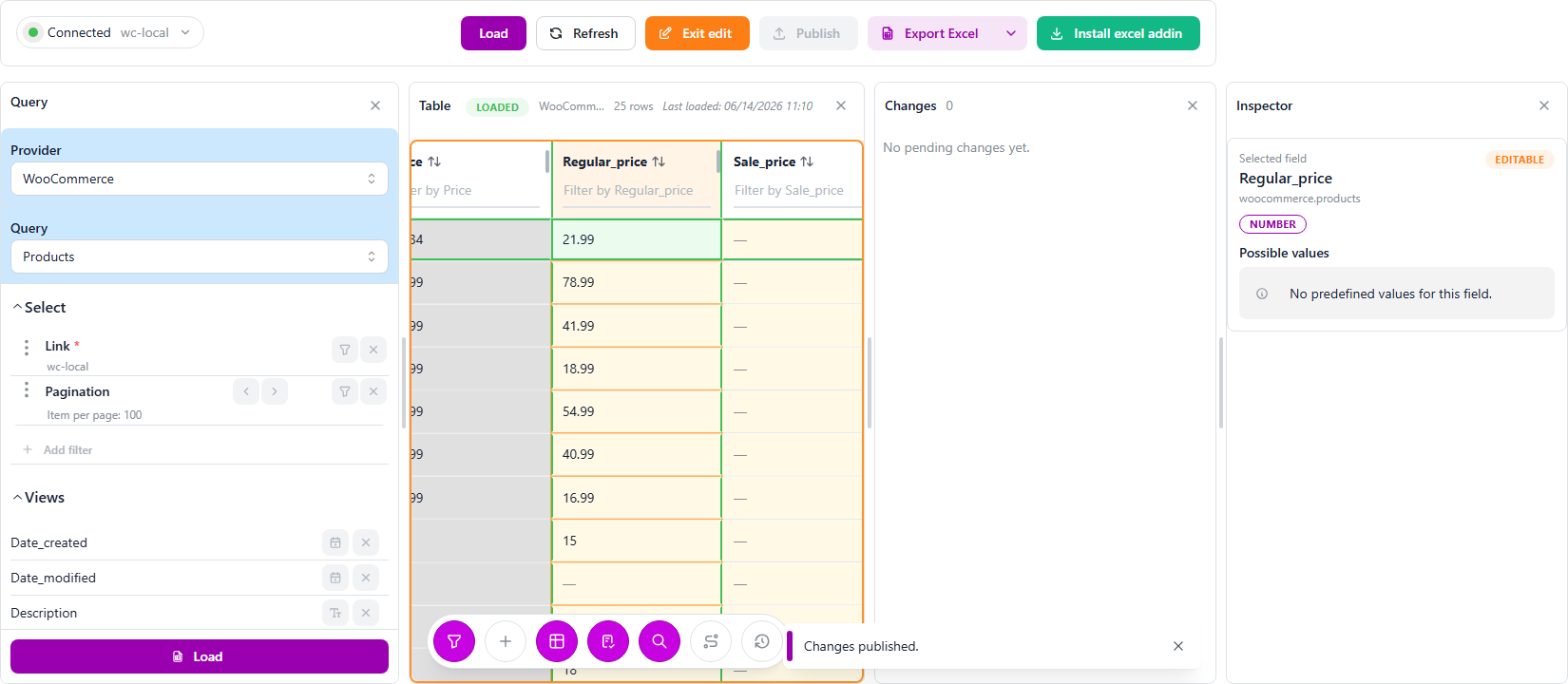
- Inspector tells her about the cell she's on: what type it is, and whether it's even allowed to change.
The editable cells light up. stock_quantity is a plain number. stock_status is a short menu — in stock, out of stock, on backorder.
Now the boxes. She works down the column the way anyone with a clipboard would: charcoal hoodie, 40. Logo tee S, 25. Beanie, 60. She's not clicking into anything — she's just filling a column, the way she'd tally an inventory on paper. Where she has a count sheet from the supplier, she pastes the whole column at once.
Every number she types lands in the Changes panel as a before → after line. For the first time, she can see the entire morning's work as a list and check it before anything goes live.
A couple of items she doesn't have an exact count for — a few odd caps she'll deal with later. For those she doesn't touch the number; she just flips Stock Status to in stock so they stop showing as sold out. (Sold out for real? outofstock. Coming next week as a pre-order? onbackorder.)
The moment of truth
She reads down the Changes panel one last time — it's her diff, her safety net — and clicks Publish.
Every pending change goes to WooCommerce in a single batch. A green Changes published. confirms it. She refreshes the table and the new quantities are sitting there. The website is no longer lying. The charcoal hoodie is buyable again.
Total time: the length of one coffee, still warm.
If a line had been rejected — a typo'd value, say — the Changes panel would have flagged that row and left the rest alone. She'd fix the one cell and publish again. No all-or-nothing.
Why she'll do this in Excel next time
Here's the thing that actually changes Léa's life: her supplier sends the restock as a spreadsheet. Next delivery, she won't retype anything. She'll load Products into Excel, paste the supplier's count column straight onto her stock_quantity column, and publish from the same panel. The whole "export a CSV, remap the columns, fight the importer" ritual just disappears.
Read the shop, edit the shop, push it back — and the spreadsheet she already uses for everything is the cockpit.
What she takes away
- Filter before loading, so you only edit what you mean to.
- The Changes panel is your receipt — read it before publishing.
- Type a quantity for real counts; use Stock Status for quick "back on the shelf" flips.
- Big restock? Publish in sensible batches rather than the whole store at once.
The shop is honest again, the boxes are unpacked, and Lila Studio is selling more than it did yesterday — same products, just true numbers.
Which gives Léa a dangerous idea. If updating sixty products took one coffee… how hard could it be to add a whole new collection?
Useful links
- LinkyFlow for WooCommerce: /products/woocommerce
- Inventory & stock doc: /docs/woocommerce-inventory-stock
- Catalog & pricing doc: /docs/woocommerce-catalog-pricing
- WooCommerce installation guide: /docs/woocommerce-installation